GoHighLevel Conversations: Set Up One Inbox for SMS, Email, Chat and Socials (2026 Guide)
Last updated: October 2026.
GoHighLevel Conversations is the one screen that decides whether your business replies to leads in minutes or loses them in a mess of apps. SMS on one phone, Facebook messages on another, emails in Outlook and web chats nobody checks: that's how enquiries slip through.
Some links below are affiliate links — if you sign up through them, Pivot 2 Thrive may earn a commission at no extra cost to you. It never changes what we recommend.
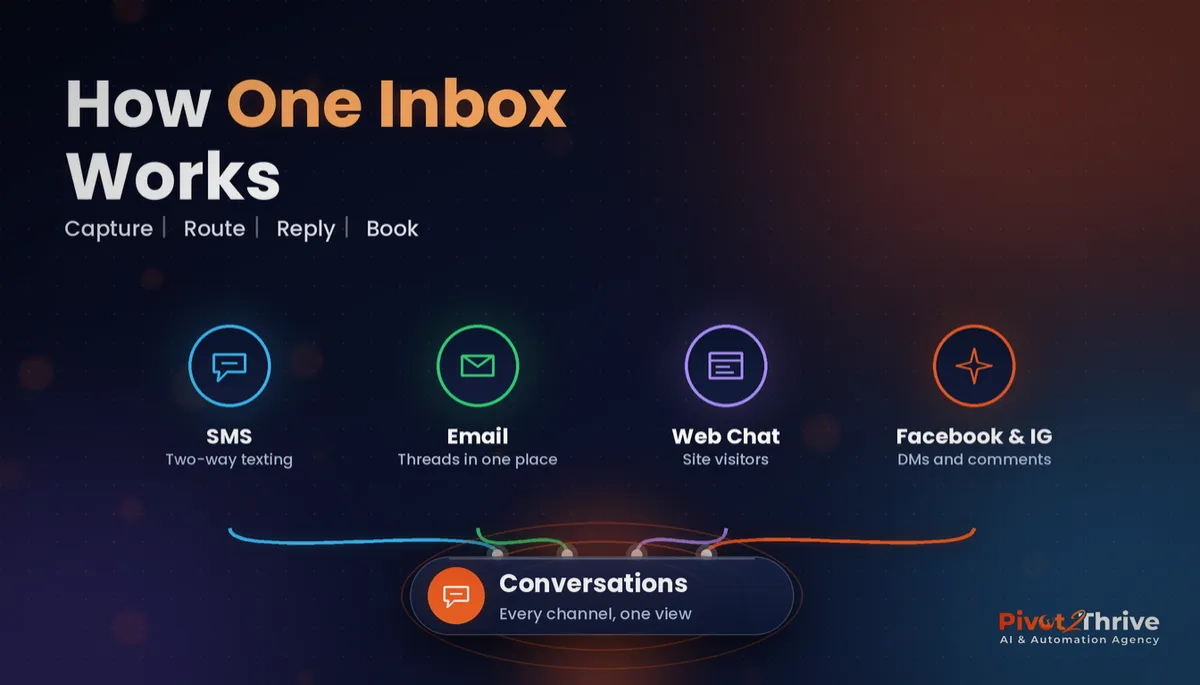
Key takeaway: GoHighLevel Conversations puts SMS, email, web chat, Facebook, Instagram and call logs into one thread per contact. Connect each channel, set up assignment and notifications, add snippets and AI replies, and work the inbox from desktop or the mobile app so no lead waits.
On This Page
- GoHighLevel Conversations Is Your Unified Inbox for Every Channel
- Why One Inbox Matters for Australian Small Businesses
- How to Set Up GoHighLevel Conversations: 7 Steps
- An Australian Example: A Trade Business Clearing Its Inbox by 9am
- Common GoHighLevel Conversations Mistakes
- Frequently Asked Questions
- Related Articles
I'm Dr Priya Jaganathan, a Go High Level Certified Admin, Certified AI Tech Stack Consultant and keynote speaker. Setting up Conversations properly is one of the first things I do in any new HighLevel account, because every workflow, AI agent and follow-up sequence I build ends up there.
GoHighLevel Conversations Is Your Unified Inbox for Every Channel
GoHighLevel Conversations is the built-in inbox in HighLevel that brings every customer message into one place. Each contact gets one thread that shows their texts, emails, chats, social DMs, calls and voicemails in order.
That matters because your team no longer has to ask "Did they email or message us?" The whole history is on one screen, next to the contact record, pipeline stage and notes.
It also connects directly to automation. A workflow can send a message, an AI agent can reply, and a human can step in, all inside the same thread.
Why One Inbox Matters for Australian Small Businesses
Most Australian businesses are tiny teams. According to the ABS Counts of Australian Businesses, there were about 2.73 million actively trading businesses at June 2025, and roughly 1.74 million of them had no employees at all.
When the owner is also the receptionist, salesperson and technician, checking five apps a day is unrealistic. A single inbox with notifications on your phone is what makes fast replies possible.
Speed is the point. Every guide I've written on speed to lead comes back to the same idea: the business that replies first usually wins, and you can't reply first to a message you never saw.
How to Set Up GoHighLevel Conversations: 7 Steps
Follow these steps in order. Allow an afternoon for a single business and test every channel with a real message before you trust it.
1. Connect your phone number for SMS and calls
Set up a LeadConnector phone number (or port your existing one) so texts and calls log against each contact. Then add missed-call text back so unanswered calls become conversations automatically.
2. Connect email
Either sync your Gmail or Outlook mailbox, or send through HighLevel's email service with your domain authenticated. Test that a customer reply lands in the right thread, not as a new contact.
3. Add web chat to your website
Install the chat widget on every page so visitors can text you from the site. My GoHighLevel web chat widget guide covers the settings that turn visitors into booked calls.
4. Connect Facebook and Instagram
Link your Facebook page and Instagram business account under integrations. Messenger chats and Instagram DMs then appear alongside everything else, with the same assignment rules.
5. Set assignment, roles and notifications
Decide who owns which conversations. Assign new leads automatically with a workflow, and use user roles and permissions so staff only see what they need. Turn on push notifications in the mobile app for unassigned and urgent threads.
6. Create snippets for common replies
Snippets are saved templates for answers you type every day: pricing ranges, opening hours, booking links, directions. Ten good snippets can halve the time it takes to clear the inbox.
7. Add Conversation AI in suggestive mode
Turn on Conversation AI with your FAQs and booking calendar, starting in suggestive mode so it drafts replies for you to approve. Once its answers are consistently right, move routine channels to auto-pilot.
Here's a quick reference for each channel:
| Channel | How to connect | Watch-out |
|---|---|---|
| SMS and calls | LeadConnector phone number or port your own | Complete carrier registration and follow Spam Act consent rules |
| Gmail/Outlook sync or HighLevel email with your domain | Authenticate SPF, DKIM and DMARC first | |
| Web chat | Chat widget code on your site | Set business hours and an after-hours reply |
| Facebook Messenger | Facebook integration in settings | Reconnect if page admin permissions change |
| Instagram DMs | Instagram business account via Facebook | Must be a business or creator account |
Want your Conversations inbox, AI replies and assignment rules set up for you? Book a free strategy call and we'll map every channel your leads use.
Not on HighLevel yet? Start with a free 30-day trial — enough time to build everything in this guide before you pay a cent.
An Australian Example: A Trade Business Clearing Its Inbox by 9am
Take a small glazing business with an owner on the tools and a part-time office manager. Before, enquiries arrived by text, Facebook, email and voicemail, and quotes were chased from memory.
After connecting every channel to Conversations, the office manager works one inbox each morning. Urgent jobs are assigned to the on-call glazier, snippets answer the common questions, and Conversation AI handles after-hours chat. It's the exact setup described in my guide to AI for glaziers in Australia.
The same single inbox is what makes event follow-up work for agencies too. When an AI agency owner gives a talk, every QR opt-in and reply lands in one place, as I explain in public speaking for AI agencies.
Common GoHighLevel Conversations Mistakes
- Connecting channels without testing. Send a real message on every channel and check it threads to the right contact.
- No assignment rules. If everyone owns the inbox, nobody does. Assign every new conversation automatically.
- Notifications switched off. An inbox you only check at your desk is barely better than five separate apps.
- Ignoring SMS compliance. Marketing texts need consent under the Spam Act. Read my guide to SMS marketing and the Spam Act before broadcasting.
- Putting AI on auto-pilot on day one. Run suggestive mode first and review its replies for a week.
Frequently Asked Questions
What is GoHighLevel Conversations?
GoHighLevel Conversations is the unified inbox inside HighLevel. It pulls SMS, email, web chat, Facebook Messenger, Instagram DMs and call logs into one thread per contact, so your team can reply to every channel from one screen.
Can I use my existing Gmail or Outlook with GoHighLevel Conversations?
Yes. You can sync a Gmail or Outlook mailbox so customer emails appear in the contact's conversation thread, or send through HighLevel's own email service. Pick one approach per sub-account and test that replies thread correctly before going live.
How do I stop staff seeing every conversation?
Use user roles and permissions to limit staff to their assigned conversations, and assign threads to specific users. That keeps each person focused on their own leads and protects sensitive client messages.
Can AI reply to messages in GoHighLevel Conversations?
Yes. HighLevel's Conversation AI can answer common questions and book appointments across supported channels, with a suggestive mode that drafts replies for a human to approve. Start in suggestive mode until you trust the answers.
Is there a mobile app for GoHighLevel Conversations?
Yes. The LeadConnector mobile app lets you read and reply to conversations, get push notifications and call contacts from your phone. It is the easiest way for owners on the road to stay on top of new enquiries.
Do I need to follow the Spam Act when texting from GoHighLevel?
Yes. Commercial SMS and email sent to Australians must meet the Spam Act 2003: you need consent, clear sender identification and a working unsubscribe option. Replying to a customer who messaged you first is fine, but marketing broadcasts need consent.
Why are some messages not showing in my GoHighLevel inbox?
The usual causes are a disconnected integration, an email sync that has expired, or filters hiding unread or unassigned threads. Check the integration status in settings, reconnect if needed, and set the inbox view to All.
Ready to stop juggling apps and reply to every lead from one screen? Book a free strategy call with Pivot 2 Thrive or explore our services at pivot2thrive.com.au.
Building it yourself? Try HighLevel free for 30 days and set up your inbox this week.
Related Articles
Services
More GoHighLevel guides
- GoHighLevel Web Chat Widget Setup
- GoHighLevel User Roles and Permissions
- GoHighLevel Email Campaigns
- SMS Marketing and the Spam Act in GoHighLevel
- AI for Glaziers in Australia
Everything else
