GoHighLevel Web Chat Widget: Set Up Live Chat That Turns Visitors Into Booked Calls (2026 Guide)
Last updated: October 2026.
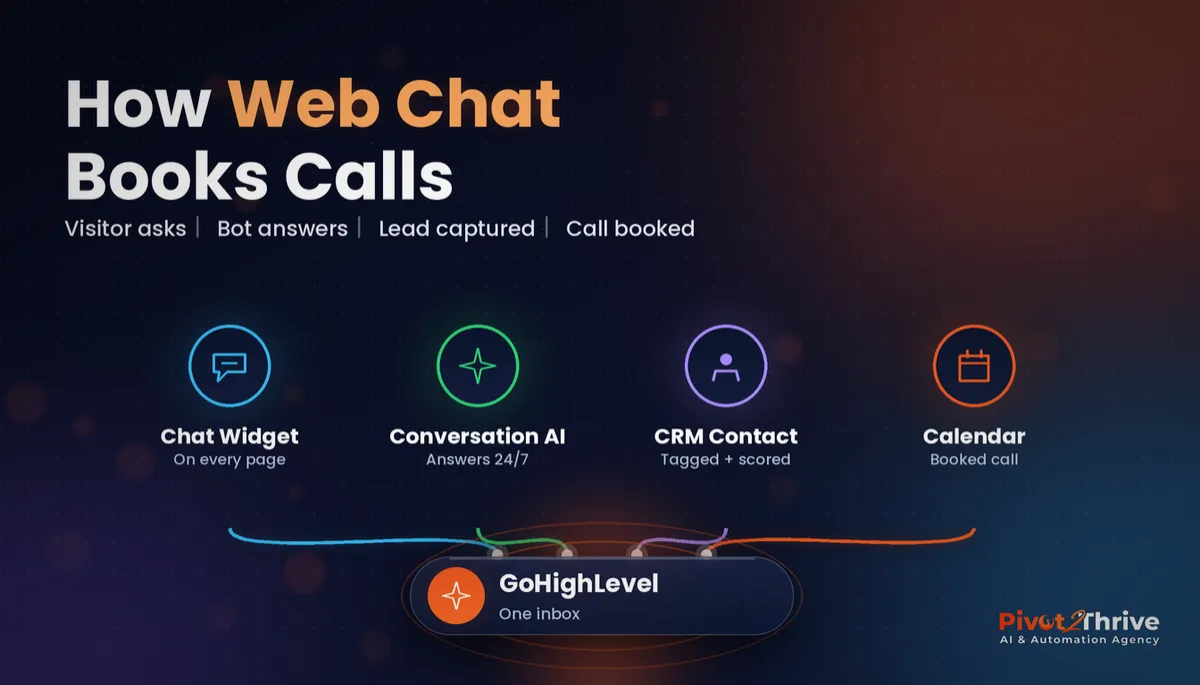
The GoHighLevel web chat widget is one of the quickest ways to stop website visitors leaving without a trace. Most small business sites still rely on a contact form that people ignore; a chat bubble invites a question, captures a phone number and, with Conversation AI switched on, can book the call while you sleep.
This guide walks through setting it up properly — not just pasting the code, but wiring it into your CRM, pipeline and calendar so every chat turns into a trackable lead.
Some links below are affiliate links — if you sign up through them, Pivot 2 Thrive may earn a commission at no extra cost to you. It never changes what we recommend.
Key takeaway: Build the chat widget in HighLevel, require name and mobile before the chat starts, install the snippet site-wide, then connect Conversation AI and a workflow that tags the contact, adds an opportunity and offers a booking link. Done this way, the web chat widget becomes a 24/7 lead capture and booking channel rather than an unanswered inbox.
On This Page
This guide comes from Dr Priya Jaganathan, founder of Pivot 2 Thrive, Go High Level Certified Admin, Certified AI Tech Stack Consultant and keynote speaker, who builds AI receptionists, lead systems and GoHighLevel automations for Australian businesses and coaches new AI agency owners through their first clients.
What the GoHighLevel Web Chat Widget Is
The GoHighLevel web chat widget is a chat bubble you build inside HighLevel and embed on any website — a GoHighLevel site or funnel, WordPress, Wix, Shopify or a custom build.
Every chat lands in the Conversations inbox alongside SMS, email and social messages, and creates or updates a contact in the CRM. That is the big difference from bolt-on chat tools: the lead, the conversation history and your follow-up automations live in one place.
You can answer chats yourself from the desktop or mobile app, or hand first responses to Conversation AI, HighLevel’s AI chatbot.
Why a Web Chat Widget Matters for Speed to Lead
Speed decides who wins the enquiry. In a 2011 Harvard Business Review study of 1.25 million sales leads (Oldroyd, McElheran and Elkington, “The Short Life of Online Sales Leads”), firms that contacted a lead within an hour were nearly seven times as likely to qualify it as firms that waited longer. The same research audited 2,241 US companies and found 23% never responded to a web lead at all.
A chat widget collapses response time to seconds, because the visitor is still on your site when the reply arrives. It is the website version of speed to lead in GoHighLevel.
Chat also catches the visitors who will never fill in a form — the ones with one quick question about price, availability or whether you service their suburb.
How to Set Up the GoHighLevel Web Chat Widget: 7 Steps
Menu names in HighLevel shift between releases, but the flow below has stayed consistent. Allow about an hour for the basic build and another hour to train the AI.
1. Create the widget. In your sub-account, open Sites and find Chat Widget. Create a new widget and choose the live chat style so messages arrive in Conversations in real time.
2. Brand it. Set your colours, avatar or logo, and a greeting that sounds like a person: “Hi! Got a question about pricing or availability? Ask away.” Avoid robotic openers — they cut reply rates.
3. Ask for contact details up front. Require name and mobile (email optional) before the chat starts. Without a phone number, a dropped chat is a lost lead. Add a short consent line so you can follow up by SMS in line with the Spam Act.
4. Install the snippet site-wide. Copy the embed code and paste it into your site’s header or footer tracking code so it loads on every page. On HighLevel sites and funnels you can add it in the site settings; on WordPress, use your theme’s header scripts or a header-and-footer plugin.
5. Switch on Conversation AI for the chat channel. Point the bot at a knowledge base covering services, pricing ranges, service areas and FAQs, and give it a booking goal. If the bot gives vague answers, our guide to building an AI agent knowledge base in GoHighLevel fixes that.
6. Build the follow-up workflow. Trigger on a new chat (for example, Customer Replied filtered to the live chat channel), then tag the contact with the source, create an opportunity in the right pipeline stage, and notify the owner by SMS. If the visitor leaves without booking, send a polite SMS ten minutes later with your calendar link.
7. Test on mobile and report weekly. Most chats start on a phone, so test the bubble does not cover your buttons. Then track chats started, contacts captured and calls booked each week.
Not sure who should answer? Here is how the three common setups compare:
| Setup | Response time | Best for | Trade-off |
|---|---|---|---|
| Human only | Minutes to hours | Low volume, high-value enquiries | Chats go cold after hours and on busy days |
| Conversation AI only | Seconds, 24/7 | Common questions and booking calls | Needs a well-built knowledge base and regular review |
| AI first, human handover | Seconds, with escalation | Most service businesses | Requires clear handover rules and notifications |
Prefer a form on some pages? Keep it — chat and GoHighLevel forms and surveys work well side by side.
Want it built and trained for you? We set up HighLevel chat widgets, Conversation AI and booking workflows for Australian businesses and agencies. Book a free strategy call to see it working on your site.
Not on HighLevel yet? Start with a free 30-day trial — enough time to build everything in this guide before you pay a cent.
An Australian Example: A Physio Clinic’s After-Hours Chats
Consider a two-location physiotherapy clinic in Perth whose website got steady traffic in the evenings, when the front desk had gone home.
After installing the GoHighLevel web chat widget with Conversation AI trained on services, fees, health fund information and opening hours, evening visitors could ask questions and pick an appointment time straight from the chat.
Each chat created a tagged contact and an opportunity, so the practice manager could see in the morning exactly which chats became bookings and which needed a call. Pair it with an AI receptionist on the phone line and both channels are covered after hours.
5 GoHighLevel Web Chat Widget Mistakes to Avoid
- Not requiring a phone number. Anonymous chats cannot be followed up.
- Installing it on one page only. Put it site-wide; visitors ask questions from blog posts and service pages too.
- Letting the AI guess. A thin knowledge base produces confident wrong answers. Review transcripts weekly.
- No owner notification. If a human handover is needed, someone must be alerted by SMS, not just an inbox badge.
- Ignoring mobile layout. A bubble covering your “Book now” button costs bookings.
Frequently Asked Questions
Is the GoHighLevel chat widget free?
The chat widget is included with HighLevel sub-accounts at no extra charge. Conversation AI, the AI chatbot that can answer chats automatically, is a paid add-on billed by usage or plan, so check current pricing in your account.
Can I add the GoHighLevel chat widget to WordPress?
Yes. Copy the widget's embed code from HighLevel and paste it into your WordPress theme's header or footer scripts, or use a header-and-footer code plugin, so the chat bubble loads on every page.
Can GoHighLevel's chat widget answer automatically with AI?
Yes. Turn on Conversation AI for the live chat channel and give it a knowledge base and a goal such as booking an appointment. It can answer common questions 24/7 and hand over to a person when needed.
Where do chat widget messages go in GoHighLevel?
Chats land in the Conversations inbox with your SMS, email and social messages, and the visitor is created or updated as a contact in the CRM. You can reply from the desktop or the mobile app.
Should I collect a phone number before the chat starts?
Yes, for most service businesses. Requiring a name and mobile number means you can follow up by SMS if the visitor leaves, which turns a dropped chat into a recoverable lead. Include a consent line so your follow-up complies with the Spam Act.
How do I track whether the chat widget is working?
Tag every chat contact with its source and create an opportunity in your pipeline, then report weekly on chats started, contacts captured and calls booked. That shows exactly how much revenue the widget influences.
Can agencies set up the chat widget for clients?
Yes. Agencies can build the widget, Conversation AI bot and follow-up workflow in each client's sub-account, or include them in a snapshot so every new client starts with a working chat-to-booking setup.
A website should do more than look good. With the GoHighLevel web chat widget wired into your CRM and calendar, it starts booking calls on its own. Book a strategy call and we will help you build it, or explore more at Pivot 2 Thrive.
Ready to build it yourself? Try HighLevel free for 30 days and set up your first chat widget this week.
Related Articles
Pivot 2 Thrive services
- PowerPivot Leads Pro — done-for-you lead generation
- AI Receptionist Agent — answer every call and enquiry
Keep reading on the blog
- Build an AI Agent Knowledge Base in GoHighLevel
- Speed to Lead with GoHighLevel
- GoHighLevel Forms and Surveys Setup
- GoHighLevel Pipeline Stages Setup
- AI for Party and Event Hire Businesses in Australia
Everything else
