
GoHighLevel Custom Values and Trigger Links: Build Once, Update Everywhere (2026 Guide)
Last updated: October 2026.
GoHighLevel custom values and trigger links are the two quiet features that decide whether your account is easy to maintain or a minefield of hard-coded text. If you have ever changed a booking link and then found the old one still sitting in 14 emails, three SMS templates and a funnel button, this guide is for you.
Set them up properly and one edit updates every message, while every click a lead makes tells your CRM exactly what they care about.
Some links below are affiliate links — if you sign up through them, Pivot 2 Thrive may earn a commission at no extra cost to you. It never changes what we recommend.
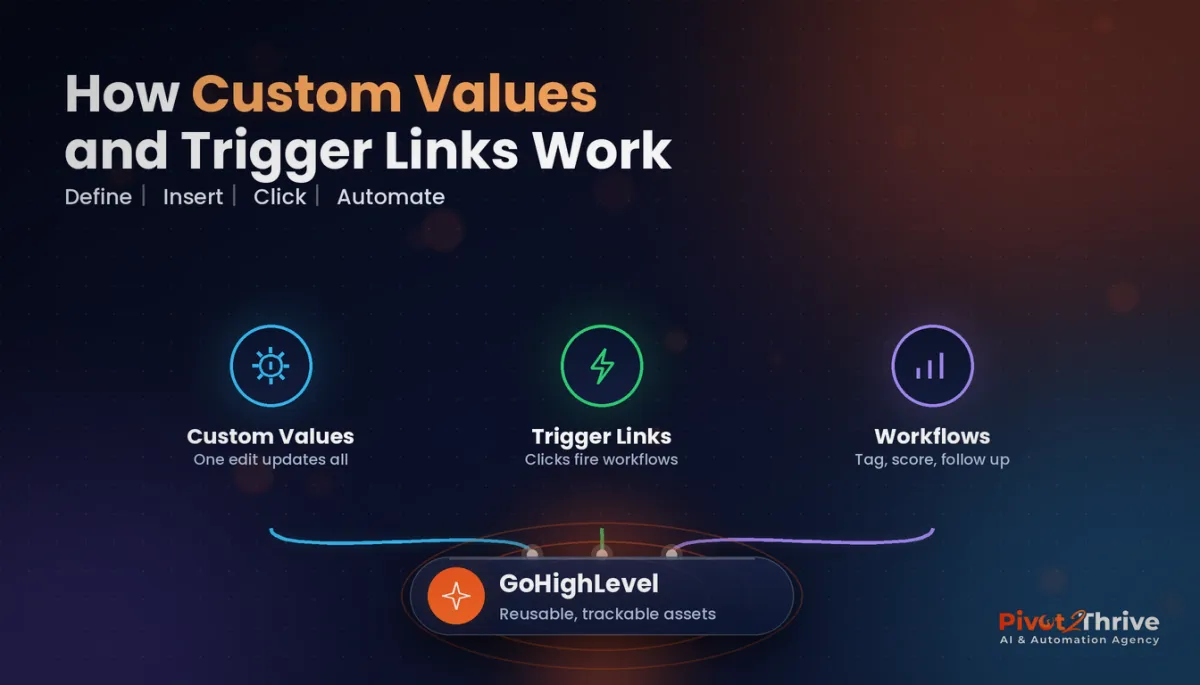
Custom values store reusable text (booking links, phone numbers, prices, offer names) in one place so a single edit updates every email, SMS, funnel and workflow that uses it. Trigger links are tracked links that tag the contact and fire a workflow when clicked. Use them together and your account becomes both easier to update and smarter about every lead.
On This Page
- Custom Values and Trigger Links Are Your Account's Single Source of Truth
- Why Hard-Coded Content Breaks GoHighLevel Automations
- How to Set Up GoHighLevel Custom Values and Trigger Links in 7 Steps
- An Australian Clinic Example: 22 Broken Links Fixed With One Edit
- 5 Trigger Link and Custom Value Mistakes We Keep Fixing
- Frequently Asked Questions
- Build It Once and Stop Chasing Old Links
- Related Articles
This guide is written by Dr Priya Jaganathan, founder of Pivot 2 Thrive, a Go High Level Certified Admin, Certified AI Tech Stack Consultant and keynote speaker who builds AI and automation systems for Australian businesses and agencies.
Custom Values and Trigger Links Are Your Account's Single Source of Truth
GoHighLevel custom values are account-level placeholders. You create a value once, such as Booking Link or Business Phone, and drop its merge field into any message or page. When the content is sent or rendered, GoHighLevel swaps in whatever the value currently says.
Trigger links are links you create under Marketing that GoHighLevel can track at the contact level. When a known contact clicks one inside an email or SMS sent from the account, the click is recorded against their record and can start a workflow through the Trigger Link Clicked trigger.
Think of custom values as the single source of truth for your content, and trigger links as the sensors that tell you what each lead did with it.
Why Hard-Coded Content Breaks GoHighLevel Automations
Hard-coded content is the most common reason we see automations quietly break. A client changes their phone number, raises their prices or moves their booking calendar, and nobody remembers every place the old version lives.
Speed matters too. In the widely cited Harvard Business Review study The Short Life of Online Sales Leads (2011), firms that tried to contact a lead within an hour were nearly seven times as likely to qualify that lead as firms that waited even one hour longer. A trigger link that fires an instant call task or SMS the moment a lead clicks Book a quote is one of the simplest ways to act inside that window.
For agencies the payoff compounds. Custom values travel inside GoHighLevel snapshots, so you can load one template into a new sub-account and only fill in the client's details, rather than editing every asset by hand.
How to Set Up GoHighLevel Custom Values and Trigger Links in 7 Steps
Here is the order we follow on every client build. It takes about an hour on a fresh account and saves many hours every time something changes.
1. Audit what changes
List every piece of text that has changed in the last year or is likely to change next year: phone numbers, booking links, opening hours, prices, offer names, review links, the owner's name, the service area. Anything on that list becomes a custom value. Anything that never changes can stay as plain text.
2. Create the custom values with a naming convention
Go to Settings → Custom Values in the sub-account and create each one. Use a clear prefix so they sort sensibly, for example Biz – Phone, Biz – Booking Link, Offer – Name, Offer – Price. Group them into folders if your account has that option. Keep the value itself clean: no trailing spaces, full URLs including https.
3. Replace hard-coded text in every asset
Open each email template, SMS template, workflow action, funnel page and form thank-you message. Replace the typed text with the custom value merge field from the merge-field picker. Work through assets in priority order: the ones leads see first (welcome SMS, booking confirmation, missed-call text back) before the ones they see later.
4. Build trigger links for every high-intent click
Under Marketing → Trigger Links, create a link for each action that signals buying intent: Book a call, See pricing, Download the checklist, Claim the offer. Name them by intent, not by page, so reports read like a story. Tip: point the trigger link at a custom value URL where your account allows it, so the destination is still editable in one place.
5. Attach workflows to the clicks
Create a workflow with the Trigger Link Clicked trigger and filter it to the specific link. Typical actions: add a tag such as intent-pricing, add points if you run GoHighLevel lead scoring, notify the assigned user, and start a short follow-up sequence. Those tags then feed Smart Lists so your next campaign goes only to the people who showed interest.
6. Test with a real contact
Send the email and SMS to a test contact (your own mobile), click every link, and check the contact record for the tag, the workflow enrolment and the correct values. Remember that trigger links only identify a contact when the link is sent from the account; a link pasted into a social post records an anonymous click. If something doesn't fire, our workflow troubleshooting guide walks through the usual culprits.
7. Document and hand over
Add a one-page sheet to the client handover listing every custom value and what it controls. The day they change their phone number, they or your team update one field and every asset follows.
| Content | Use a custom value? | Use a trigger link? |
|---|---|---|
| Booking or calendar link | Yes | Yes, track who clicks |
| Business phone and address | Yes | No |
| Prices and offer names | Yes | Only on the offer CTA |
| Google review link | Yes | Yes, tag who left a review |
| Lead magnet download | Optional | Yes, tag the interest |
| Legal footer and unsubscribe text | Yes | No |
Want this built for you? We set up custom values, trigger links and the workflows behind them as part of every CRM build. Book a free CRM strategy call and we'll map your account in 30 minutes.
Not on HighLevel yet? Start with a free 30-day trial — enough time to build everything in this guide before you pay a cent.
An Australian Clinic Example: 22 Broken Links Fixed With One Edit
Here is a pattern we see again and again, shown as a typical Melbourne allied health clinic. Its booking link is typed directly into 22 assets across emails, SMS and two funnels. When it switches calendars, half of those assets keep sending patients to a dead page for weeks before anyone notices.
The fix is a rebuild with around nine custom values and five trigger links. The booking link lives in one field, and every Book now click tags the patient and creates a reception task if no appointment is booked within two hours. The next calendar change becomes a one-minute job for the practice manager. The trigger link data also shows which newsletter topics produce the most booking clicks, which reshapes what the clinic sends.
Agencies who want more ways to turn engaged contacts into booked calls should also read how to use podcast guesting to book AI agency clients, which uses trigger links to track show-note traffic.
5 Trigger Link and Custom Value Mistakes We Keep Fixing
- Creating values nobody uses. Only make custom values for content that repeats or changes. Fifty unused values make the picker harder to use.
- Vague names. Link 1 and Link 2 are useless six months later. Name by purpose.
- Using trigger links in public posts and expecting contact data. Clicks are only tied to a contact when the link is sent from GoHighLevel to that contact.
- No filter on the workflow trigger. Without a link filter, every trigger link click starts the same workflow.
- Skipping the test. A merge field with a typo renders as blank text. Always send a test before going live.
Frequently Asked Questions
What are custom values in GoHighLevel?
Custom values are reusable placeholders stored at the sub-account level, such as a booking link, phone number or price. You insert their merge field into emails, SMS, funnels and workflows, and changing the value once updates every place it is used.
What is the difference between custom values and custom fields?
Custom values hold the same information for the whole account, such as the business phone number. Custom fields hold information that is different for each contact, such as a patient's preferred clinic. Use custom values for business details and custom fields for lead details.
How do trigger links work in GoHighLevel?
A trigger link is a tracked link you create under Marketing. When a contact clicks it inside an email or SMS sent from the account, GoHighLevel records the click on their record and can start any workflow that uses the Trigger Link Clicked trigger.
Do trigger links work on social media or my website?
They still redirect visitors, but GoHighLevel can only tie a click to a specific contact when the link was sent to that contact from the account. On public pages and social posts the click is anonymous, so use them mainly in your own emails and SMS.
Are custom values included in GoHighLevel snapshots?
Yes. Custom values are part of a snapshot, which is why agencies use them to build reusable templates. After loading the snapshot into a new sub-account you only update the values for that client instead of editing every asset.
How many custom values should a sub-account have?
Most small business accounts need between 8 and 20. Create one for every piece of text that repeats across assets or is likely to change, and skip anything that appears once and never changes.
Build It Once and Stop Chasing Old Links
Custom values and trigger links take an afternoon to set up and pay off every week after. If you would like us to audit your account and set them up properly, book a CRM strategy call or explore more at Pivot 2 Thrive.
Building client accounts on HighLevel? Get the 30-day HighLevel trial here.
Related Articles
Our services
- PowerPivot Leads Pro: done-for-you lead capture and follow-up
- AI Receptionist Agent for Australian businesses
More GoHighLevel guides
- GoHighLevel Smart Lists: segment contacts so every campaign lands
- GoHighLevel lead scoring setup guide
- GoHighLevel forms and surveys that qualify as they collect
- How to troubleshoot GoHighLevel workflows
- Podcast guesting for AI agencies
Everything else