
GoHighLevel Contact Import: Move Your Customer List In Without Firing the Wrong Automations (2026 Guide)
Last updated: November 2026.
 By Dr Priya Jaganathan, Certified AI Tech Stack Consultant · Pivot 2 Thrive · Updated 4 November 2026 · 8 min read
A step-by-step way to bring years of customer data into HighLevel so it is clean, segmented, consent-safe and ready to use on day one.
A GoHighLevel contact import looks like a five-minute job: export a spreadsheet, upload it, done. In practice it is where most new HighLevel accounts go wrong — duplicate contacts, phone numbers that will not text, and old leads getting a "Welcome!" SMS they never asked for.
This guide walks you through the import the way we run it for clients, so the data lands clean and your automations stay quiet until you are ready.
Some links below are affiliate links — if you sign up through them, Pivot 2 Thrive may earn a commission at no extra cost to you. It never changes what we recommend.
A safe GoHighLevel contact import has four stages: clean the file, map every column to a field, tag the batch with its source and consent status, then verify a sample before any workflow can touch it. Do those in order and you get a usable CRM on day one instead of a clean-up project.
I'm Dr Priya Jaganathan — Go High Level Certified Admin, Certified AI Tech Stack Consultant and keynote speaker. At Pivot 2 Thrive I build these systems for Australian businesses every week, so this guide is written from the build, not the brochure.
GoHighLevel contact import is more than an upload button
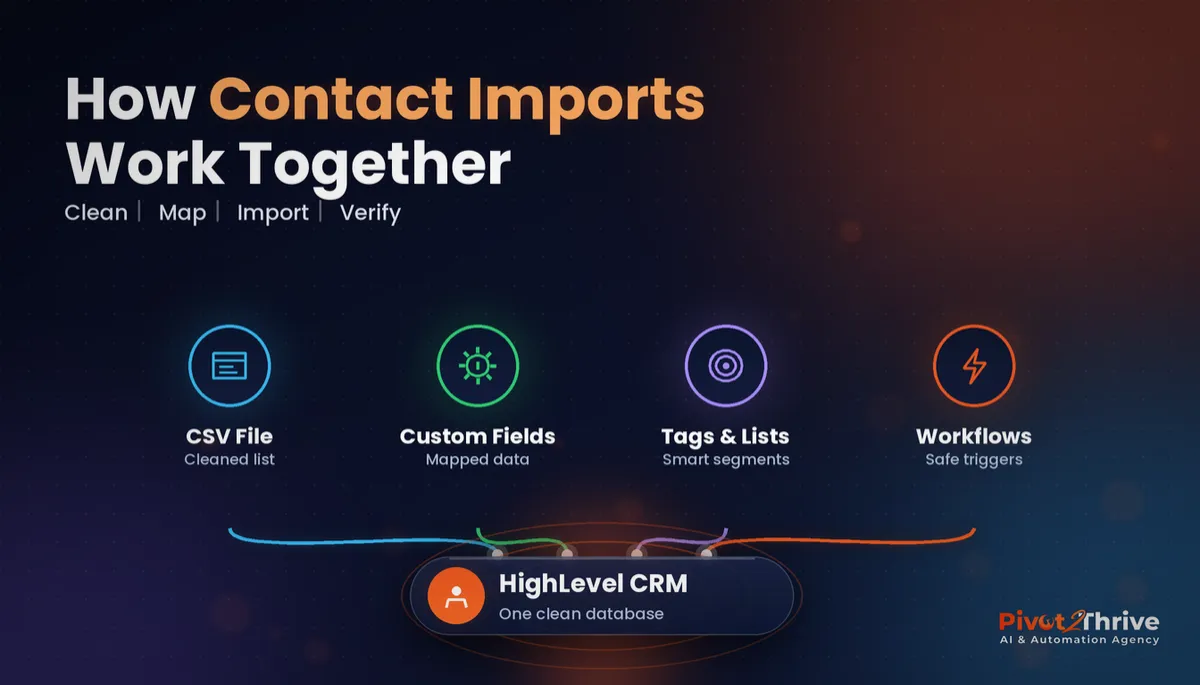
GoHighLevel contact import is the process of bringing existing customer and lead records into a HighLevel sub-account from a CSV file, usually exported from another CRM, a booking system or a spreadsheet. HighLevel reads each column, matches it to a contact field and creates or updates one contact per row.
The upload itself is quick. The work is in what happens before and after it: which fields exist to receive the data, how duplicates are matched, and which tags the imported contacts carry.
If you are moving a whole business across, the import is one step inside a wider move — our GoHighLevel CRM migration checklist covers pipelines, calendars and domains around it.
Why a messy contact import costs more than it saves
The biggest risk is not a cluttered database. It is sending marketing messages to people who never agreed to receive them. Under Australia's Spam Act 2003, commercial emails and SMS need consent, sender identification and a working unsubscribe — and the regulator does enforce it.
In October 2024 the ACMA announced the Commonwealth Bank had paid a $7.5 million penalty for Spam Act breaches. A small business will not see a number like that, but the lesson scales down: if you cannot show where a contact came from and what they agreed to, do not put them in a marketing workflow.
The second cost is operational. Duplicate contacts split conversation history, break pipeline reporting and make your team doubt the CRM. Once trust in the data goes, people drift back to spreadsheets. Our guide to SMS marketing and the Spam Act in GoHighLevel covers the consent side in more depth.
How to import contacts into GoHighLevel in 6 steps
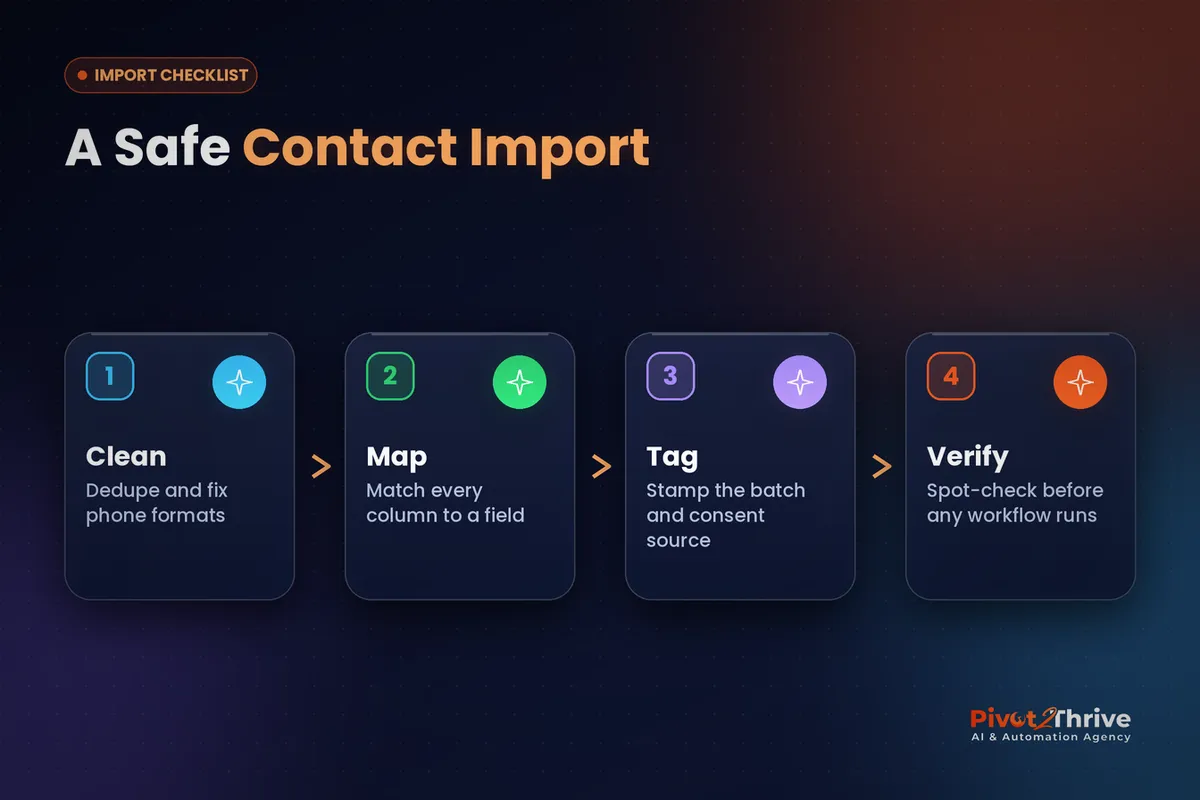
This is for business owners and agency builders moving 500 to 50,000 contacts. Budget an hour for a small list and half a day for a messy one — most of it is cleaning, not clicking.
1. Export everything, then cut it down. Pull a full export from the old system, keep an untouched copy, and work on a second file. Delete test records, staff accounts and contacts with neither an email nor a phone number — HighLevel needs at least one to create a contact.
2. Fix phone numbers and dedupe. Convert Australian mobiles to international format (+614…) so SMS works, trim spaces from emails, and remove duplicate rows by email first, then phone. HighLevel's duplicate handling follows your location settings, so check under Settings → Business Profile whether it matches on email, phone or both before you upload.
3. Build the fields before the file. Every column you want to keep needs somewhere to land. Create custom fields first — last service date, suburb, customer type — using our custom fields setup guide. Columns with nowhere to go are silently dropped.
| Old system column | HighLevel field | Watch out for |
|---|---|---|
| Full name | First name + Last name | Split it in the sheet first |
| Mobile | Phone | Must be +61 format for SMS |
| Last job date | Custom field (date) | Use one date format throughout |
| Opted in to newsletter | Tag: consent-email | Never assume consent for blank rows |
| Notes | Contact note (or custom large text field) | Long notes may need trimming |
4. Tag the batch on the way in. In the import screen, add a tag such as import-nov-2026 plus a source tag (source-old-crm) and a consent tag where you have proof. Tags are how you find, segment and, if needed, bulk-undo this exact batch later.
5. Switch off workflows that trigger on new contacts or tags. Any workflow triggered by "Contact Created" or "Contact Tag Added" will fire for every imported row. Pause them, or add a filter that excludes the import tag, before you upload. This one step prevents almost every import horror story we see.
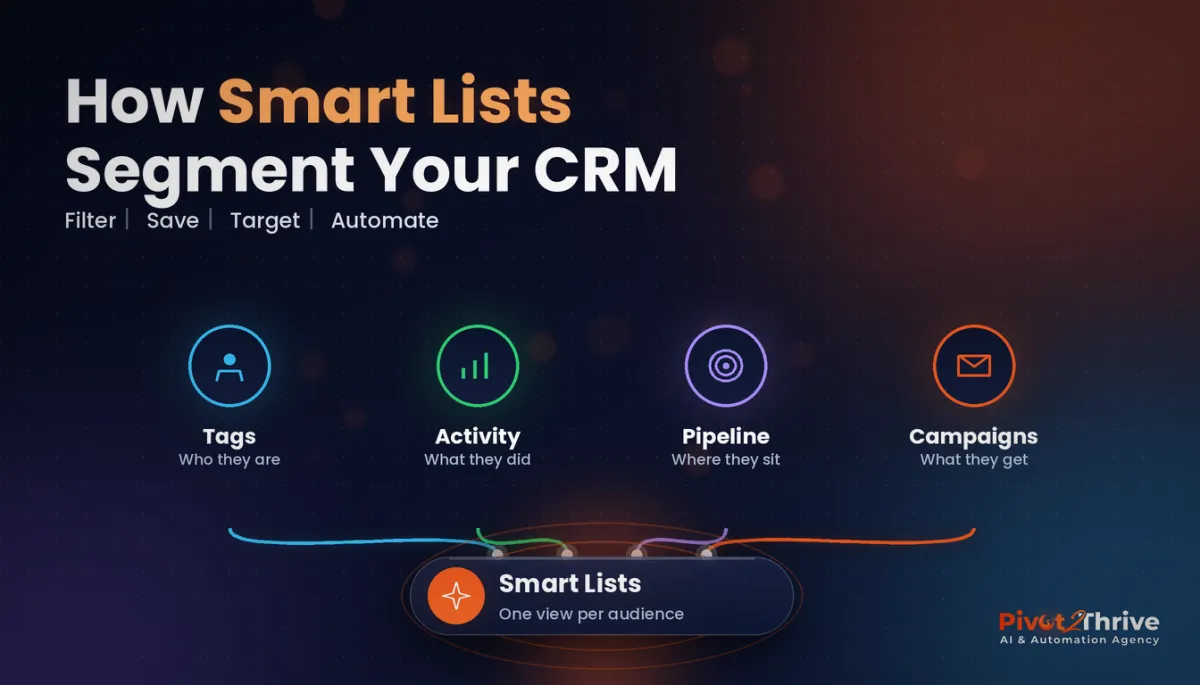
6. Upload, then verify a sample. Import the file, open ten random contacts and check name, phone, fields and tags. Build a smart list filtered by the import tag to confirm the count matches your sheet — our smart lists guide shows how. Only then turn workflows back on.
Done this way, the import becomes a foundation rather than a liability: every contact is findable, segmentable and safe to message.
Frequently Asked Questions
How do I import contacts into GoHighLevel?
Go to Contacts, choose Import, upload a CSV file and map each column to a HighLevel field. Add tags during the import so you can find the batch later, and pause any workflows triggered by new contacts or tags before you start.
What file format does GoHighLevel contact import accept?
HighLevel imports contacts from CSV files. Export from your old CRM or spreadsheet as CSV, keep one header row, and make sure every row has at least an email address or a phone number.
Will importing contacts trigger my GoHighLevel workflows?
Yes, it can. Workflows triggered by Contact Created or Contact Tag Added can fire for every imported row, so pause them or add a filter that excludes your import tag until you have checked the data.
How does GoHighLevel handle duplicate contacts on import?
HighLevel matches duplicates using your location's duplicate contact settings, which can be based on email, phone or both. Check that setting before importing and remove obvious duplicates in the spreadsheet first.
Can I send marketing SMS to imported contacts in Australia?
Only if they have consented. The Spam Act 2003 requires consent, sender identification and an unsubscribe option for commercial messages, so tag consented contacts separately and keep others out of marketing campaigns.
How do I undo a bad contact import in GoHighLevel?
If you tagged the batch during import, filter contacts by that tag and bulk-edit or bulk-delete them. Without a batch tag, cleaning up a bad import is slow and manual, which is why tagging every import matters.
The upload takes two minutes. The 40 minutes of cleaning before it decide whether your CRM is trusted or abandoned.
Not on HighLevel yet? Start with a free 30-day trial — enough time to build everything in this guide before you pay a cent.
A Brisbane plumbing business imports 6,000 past customers
Here is an illustrative scenario based on the jobs we typically see. A Brisbane plumbing business has 6,000 past customers in an old job-management system and wants to start winter hot-water service reminders from HighLevel.
They export the list, strip out 900 records with no phone or email, convert mobiles to +61 format and create custom fields for suburb, last job date and hot-water system type. Every row gets import-nov-2026; only customers who ticked the marketing box get consent-sms.
Before uploading, they pause their "new lead" welcome workflow. After the import, a smart list of consented customers with a last job date more than 12 months ago becomes the audience for a polite service-reminder campaign.
The owner notices the difference within a week: one record per customer, full history in one place, and no angry replies from people who never asked to hear from them.
GoHighLevel contact import mistakes to avoid
- Importing with live workflows. New-contact triggers fire on every row. Pause them or filter out the import tag first.
- Treating every old contact as opted in. A past customer is not automatically a marketing subscriber. Tag consent only where you can prove it.
- Skipping custom fields. Unmapped columns vanish. Create the fields before the upload, not after.
- Local phone formats. Numbers starting 04 without the country code often fail SMS. Convert to +61 first.
- No batch tag. Without one, you cannot find or reverse a bad import cleanly.
Once the data is in, the next quick win is capturing new enquiries cleanly — our GoHighLevel forms guide shows how to keep new contacts as tidy as the imported ones.
Still deciding on a platform? Try HighLevel free for 30 days and run a test import of 50 contacts before you move the rest.
Related Articles
Our services
- PowerPivot Leads Pro — AI lead generation and follow-up
- AI Receptionist Agent — answer every call, 24/7
Keep reading
 GoHighLevel CRM Migration Checklist (2026)
 GoHighLevel Custom Fields Setup Guide
 GoHighLevel Smart Lists and Segmentation GuideAI for Marine Businesses in Australia (2026 Guide)AI Agency January Slow Season: Keep Cash Flow Steady
Everything else