
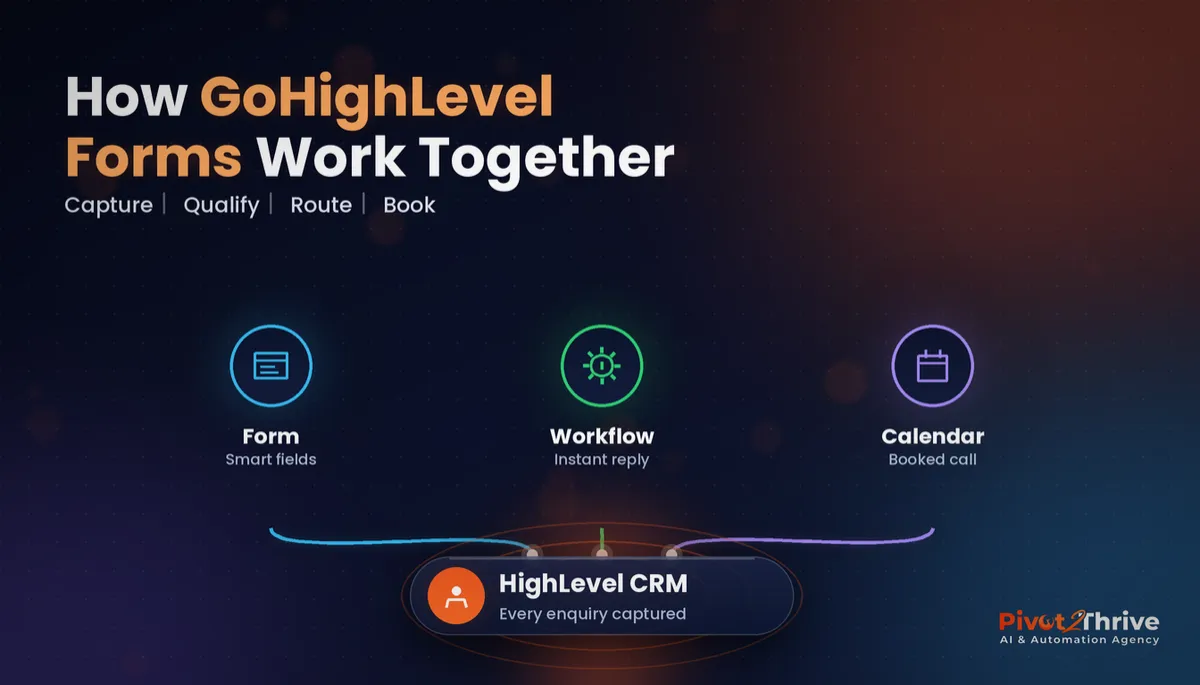
GoHighLevel Forms: Build Enquiry Forms That Qualify and Route Leads (2026 Guide)
Last updated: November 2026.
 By Dr Priya Jaganathan, Certified AI Tech Stack Consultant · Pivot 2 Thrive · Updated 3 November 2026 · 6 min read
A step-by-step build for GoHighLevel forms that ask the right questions, tag and route every lead, and start follow-up within seconds.
GoHighLevel forms are where most of your leads first enter the CRM, yet many accounts still run a single generic contact form that dumps every enquiry into one inbox. The result is slow replies, missing details and leads nobody owns.
This guide shows how I build forms in HighLevel that qualify the enquiry, route it to the right person and trigger follow-up automatically.
Some links below are affiliate links — if you sign up through them, Pivot 2 Thrive may earn a commission at no extra cost to you. It never changes what we recommend.
A good GoHighLevel form collects only the fields you act on, maps them to custom fields, uses conditional logic to qualify, and fires a Form Submitted workflow that replies instantly and assigns an owner. Build one form per intent rather than one form for everything.
I'm Dr Priya Jaganathan — Go High Level Certified Admin, Certified AI Tech Stack Consultant and keynote speaker. I build HighLevel accounts for Australian businesses and agencies, and the enquiry form is usually the first thing I rebuild because everything downstream depends on it.
GoHighLevel forms are the front door of your CRM
GoHighLevel forms are the native form builder inside HighLevel, found under Sites, that lets you create enquiry, booking-request and lead-capture forms which save submissions straight to contact records.
Because each submission creates or updates a contact, a form is not just a web page element. It is the trigger point for tags, pipelines, notifications and follow-up.
Forms sit alongside GoHighLevel quizzes and surveys. Use a form when you know what to ask; use a quiz when you want to score and segment.
Why your GoHighLevel form decides how fast you reply
Speed decides most enquiries. In “The Short Life of Online Sales Leads” (Harvard Business Review, 2011), firms that tried to contact a lead within an hour were nearly seven times as likely to qualify it as firms that waited even one hour longer.
A form that triggers a workflow can reply in seconds, even at 9 pm. A form that only sends an email notification relies on someone noticing it.
Forms also decide data quality. If a field is free text, you cannot segment on it later, so every follow-up becomes manual.
For the bigger response-time picture, read our guide to speed to lead in GoHighLevel.
How to build a GoHighLevel form that qualifies and routes leads in 8 steps
This build takes about an hour per form once your custom fields exist. It suits service businesses and agencies building client accounts.
1. Decide the form's single job. One form per intent: new enquiry, quote request, callback, event registration. Each gets its own workflow, which keeps reporting clean.
2. Create custom fields first. Build dropdowns for service type, budget range, suburb and timeframe before you open the builder. Our GoHighLevel custom fields guide covers the naming rules.
3. Build the form in Sites, then Forms. Drag in name, phone and email, then your custom fields. Keep it to the fields you act on; every extra field costs submissions.
4. Add conditional logic. Show follow-up questions only when relevant, such as asking for a business name only if the enquirer picks a commercial service.
| Form type | Fields to include | Workflow action |
|---|---|---|
| New enquiry | Name, phone, email, service, suburb | Instant SMS reply, assign owner, add to pipeline |
| Quote request | Service, scope, timeframe, photos | Create opportunity, send booking link |
| Callback request | Name, phone, best time | Task for the team, SMS confirmation |
| Event registration | Name, email, session choice | Confirmation email, reminders |
| Client support | Client name, priority, description | Ticket tag, notify support inbox |
5. Capture the source. Add hidden fields for UTM parameters so attribution reports show which ads and pages produce enquiries.
6. Set the on-submit action. Redirect to a thank-you page with a booking calendar, or show a message that tells the lead exactly what happens next.
7. Build the Form Submitted workflow. Filter the trigger to this form, send an instant SMS and email, add tags, create the opportunity and assign a user. Add a lead score if you use one.
8. Embed and test. Copy the embed code to your website, submit a test with your own number, and check the contact, tags, opportunity and messages all fire.
Repeat the test after any change to fields or workflows, because a renamed field silently breaks mappings.
A form is not the end of your website. It is the start of your sales process, so build it with the workflow open in the next tab.
Not on HighLevel yet? Start with a free 30-day trial — enough time to build everything in this guide before you pay a cent.
An Australian example: splitting one form into two
Here is an illustrative scenario, not a real client. A Perth landscaping business uses one contact form for everything, from $500 garden tidy-ups to $60,000 backyard builds.
We split it into a quick-quote form and a design-consultation form, each with dropdowns for project type, budget range and suburb, plus hidden UTM fields.
Small jobs now get an instant SMS with a booking link for a site visit. Large projects create an opportunity in the design pipeline and assign the senior designer, who calls the same day.
The owner sees which ads bring the large projects and stops spending on the ones that only bring tidy-ups. Pair this with GoHighLevel lead scoring to rank enquiries automatically.
GoHighLevel form mistakes that cost you leads
- One form for every purpose. You cannot route or report properly. Build one form per intent.
- Free-text fields for key data. Use dropdowns for service, budget and suburb so you can segment and route.
- No workflow behind the form. A notification email is not follow-up. Trigger an instant reply and assign an owner.
- Too many fields. Ask what you need to act now and collect the rest later.
- Never testing after edits. Renamed fields and changed forms quietly break workflows. Test after every change.
Forms work for every industry. See how an AI-assisted EV charger installer captures after-hours enquiries, and how agency founders can use a support form to stop being the help desk.
Frequently Asked Questions
Where do I build forms in GoHighLevel?
Forms are built in the Sites area of a HighLevel sub-account, under Forms, using a drag-and-drop builder. Each form can be embedded on any website or used inside HighLevel funnels and websites.
Can GoHighLevel forms trigger a workflow?
Yes. Use the Form Submitted trigger in a workflow and filter it to the specific form. The workflow can then send an instant SMS or email, add tags, create an opportunity and assign a team member.
Do GoHighLevel forms support conditional logic?
Yes. You can show or hide fields based on earlier answers, which keeps forms short while still collecting the right details for each type of enquiry.
How do I track where form leads come from in GoHighLevel?
Add hidden fields for UTM parameters and use HighLevel's attribution reporting. Each submission then records the source, medium and campaign, so you can see which ads and pages produce enquiries.
Should I use a form or a quiz in GoHighLevel?
Use a form when you know exactly what to ask and want a fast enquiry. Use a quiz when you want to score answers and segment leads by result.
How many fields should an enquiry form have?
Keep an enquiry form to the fields you will act on immediately, typically name, phone, email and two to four qualifying dropdowns. Collect extra details later in the follow-up or on the call.
Still deciding on a platform? Try HighLevel free for 30 days and build your first qualifying form this week.
Related Articles
Our services
- PowerPivot Leads Pro — AI lead generation and follow-up
- AI Receptionist Agent — answer every call, 24/7
Keep reading
 GoHighLevel Quizzes: Build a Lead-Qualifying Quiz That Books Calls
 GoHighLevel Custom Fields: Structure Contact Data So Automations Stay Reliable
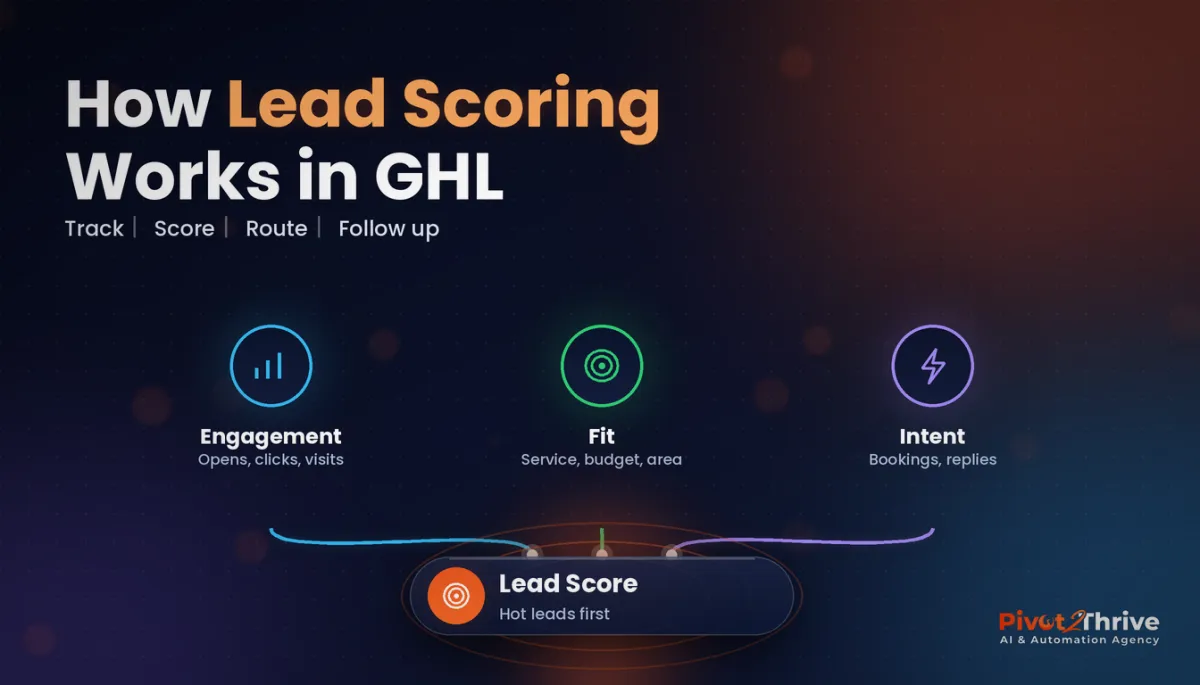 GoHighLevel Lead Scoring Setup Guide
 Speed to Lead for GoHighLevel Agencies
 AI for EV Charger Installers in Australia
Everything else