GoHighLevel Custom Fields: How to Structure Contact Data So Your Automations Stay Reliable (2026 Guide)
Last updated: October 2026.
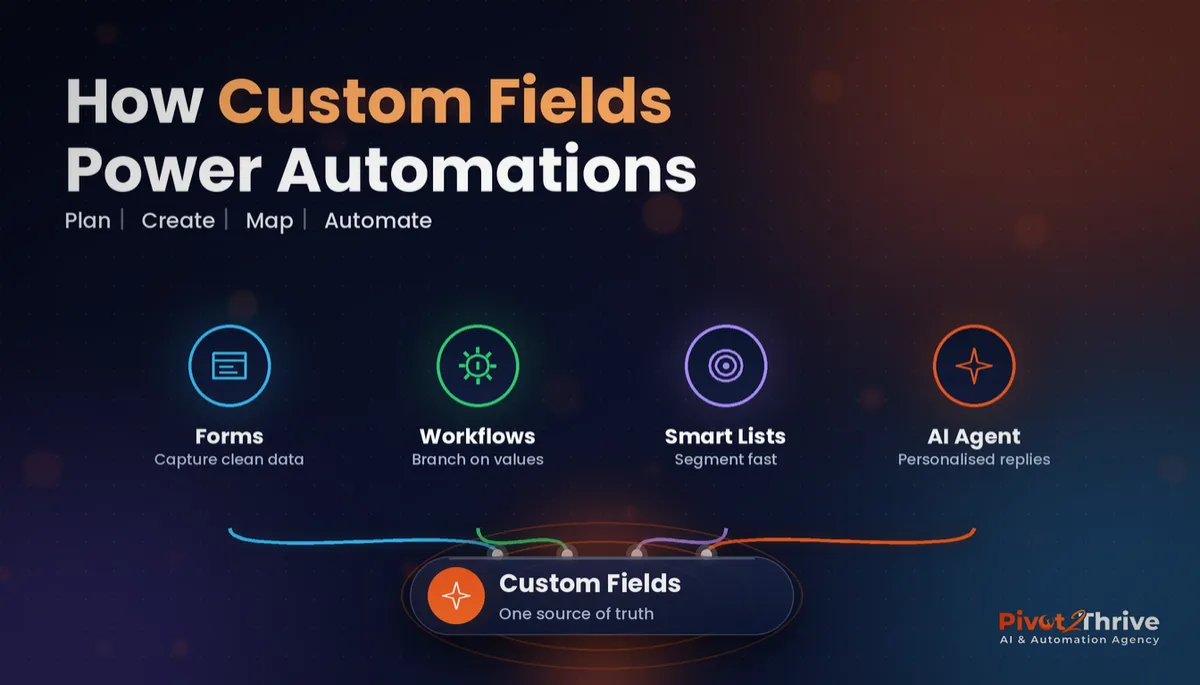
GoHighLevel custom fields decide whether your automations run cleanly or break in strange ways six months later. Most accounts I audit have the same problem: dozens of duplicate, vaguely named fields that nobody trusts. This guide shows how to plan, name and organise them properly.
Some links below are affiliate links — if you sign up through them, Pivot 2 Thrive may earn a commission at no extra cost to you. It never changes what we recommend. Full disclosure available on request.
Key takeaway: Plan your GoHighLevel custom fields before you build forms or workflows: decide the data you need, choose the most restrictive field type, use a consistent naming convention and group fields into folders. Clean fields make workflows, smart lists, personalisation and AI agents reliable.
On This Page
- What GoHighLevel Custom Fields Are (and How They Differ From Tags)
- Why Messy Custom Fields Break Good Automations
- How to Set Up GoHighLevel Custom Fields in 7 Steps
- An Australian Example: Custom Fields for a Trades Client
- GoHighLevel Custom Field Mistakes to Avoid
- Frequently Asked Questions
- Related Articles
This guide is written by Dr Priya Jaganathan, Go High Level Certified Admin, Certified AI Tech Stack Consultant and keynote speaker, who builds AI and automation systems for Australian businesses through Pivot 2 Thrive.
What GoHighLevel Custom Fields Are (and How They Differ From Tags)
GoHighLevel custom fields are extra data points you add to contacts or opportunities beyond the standard name, email and phone. Examples include job type, budget, service suburb, renewal date or lead source detail.
They are different from tags. A tag is a label ("lead", "attended webinar"), while a custom field stores a value ("$15,000", "exposed aggregate driveway", "12 March"). I cover tag structure in my GoHighLevel tags naming system.
They are also different from custom values, which hold one account-wide setting such as your booking link. See custom values and trigger links for that side.
Why Messy Custom Fields Break Good Automations
Every workflow condition, smart list filter and personalised message depends on field data. If one form writes "Driveway" to a text field and another writes "driveway " to a different field, your automation quietly misses half your contacts.
Bad data is expensive at any scale. Gartner reports that poor data quality costs organisations an average of US$12.9 million a year, a figure from its 2020 survey of data quality customers, repeated in its 2024 guidance. A small agency client will not lose millions, but the pattern is the same: broken segments, wrong messages and reports nobody believes.
Clean fields also matter more now that AI agents read contact data to personalise replies. Garbage in a field becomes garbage in a conversation.
How to Set Up GoHighLevel Custom Fields in 7 Steps
This is the process I use when setting up or cleaning a client sub-account. Do it before you build forms, not after.
1. List the decisions the data must drive. Start from outcomes: which workflows branch, which smart lists you need, what reports the client wants. Only create fields that support one of those. If nothing uses it, skip it.
2. Choose the most restrictive field type. Restricted types prevent typos and make filters reliable.
| Field type | Use it for | Avoid it for |
|---|---|---|
| Dropdown / radio | Fixed options: job type, service, lead source | Answers with many unpredictable values |
| Checkbox (multiple) | Several interests or services at once | A single yes/no status (use a tag) |
| Number / monetary | Budget, square metres, quote value | Phone numbers or postcodes |
| Date | Renewal, event, follow-up dates | Free-text dates like "next month" |
| Single-line text | Genuinely free answers: company ABN, suburb | Anything you will filter on |
| File upload | Site photos, documents | Data you need to read in workflows |
3. Adopt a naming convention. Use a short prefix for the area and a plain name: "Lead – Job Type", "Lead – Budget", "Client – Renewal Date". Consistent names make fields easy to find in workflow dropdowns and merge fields.
4. Group fields into folders. Create folders such as Lead Qualification, Client Details and Billing. It keeps the contact record readable for the client's team.
5. Map every form and survey to existing fields. Before adding a question, check whether a field already exists. One field per piece of data, no matter how many forms collect it. My forms and surveys guide covers the capture side.
6. Use the fields in automation. Branch workflows on dropdown values, build smart lists that segment by field, personalise SMS with merge fields, and feed lead scoring from qualifying answers.
7. Document and audit quarterly. Keep a simple field register (name, type, purpose, which forms write to it). Every quarter, delete or merge fields nobody uses.
Want your GoHighLevel account cleaned up and structured properly? Book a free strategy call with Pivot 2 Thrive and we will review your data model with you.
Not on HighLevel yet? Start with a free 30-day trial — enough time to build everything in this guide before you pay a cent.
An Australian Example: Custom Fields for a Trades Client
Take a Sydney agency onboarding a concreting client. Instead of a generic "Message" box, the quote form writes to a handful of planned fields: Lead – Job Type (dropdown), Lead – Square Metres (number), Lead – Site Access (radio), Lead – Suburb (text) and Lead – Site Photos (file upload).
Now the workflow routes large commercial slabs to the owner, sends small residential jobs a booking link, and a smart list shows every exposed aggregate enquiry for a seasonal promotion. The AI setup for concreters relies on exactly this structure.
The agency also tracks its own delivery with a "Client – Testimonial Status" dropdown, which drives the request flow in my client testimonials system. Same principle, different account.
GoHighLevel Custom Field Mistakes to Avoid
- Creating fields on the fly inside forms. This is how duplicates are born. Plan fields first, then build forms.
- Using text fields for everything. Free text makes filters unreliable. Use dropdowns wherever answers are predictable.
- Vague names. "Type", "Info" and "Other 2" mean nothing in six months. Name fields so a new team member understands them.
- Storing status in fields that should be tags. Simple yes/no states that trigger workflows usually work better as tags.
- Never cleaning up. Unused fields clutter contact records and workflow menus. Audit them every quarter.
Frequently Asked Questions
What is the difference between a custom field and a tag in GoHighLevel?
A tag is a yes-or-no label, such as whether a contact is a lead or attended a webinar. A custom field stores a value, such as job size, budget, preferred suburb or renewal date. Use tags for status and triggers, and custom fields for details you want to filter, personalise or report on.
What is the difference between custom fields and custom values?
Custom fields hold data about each individual contact or opportunity, so every contact can have a different value. Custom values hold one account-wide value, such as your business phone number or booking link, that you reuse across messages and pages and update in one place.
Which field type should I choose in GoHighLevel?
Pick the most restrictive type that fits. Use dropdowns, radio buttons or checkboxes for fixed options, number fields for amounts you will compare, date fields for anything time-based, and single-line text only when the answer is genuinely free-form. Restricted types keep workflows and smart lists reliable.
Can I change a custom field's type after creating it?
In most cases you cannot convert a field to a different type once it holds data, so you would create a new field and migrate the values. That is why it pays to plan field types before you build forms and workflows.
How many custom fields should a GoHighLevel account have?
As few as you will actually use. A focused account usually runs well on a few dozen well-named fields grouped into folders. If nobody filters, personalises or reports on a field, it probably does not need to exist.
Do custom fields work with GoHighLevel AI agents?
Yes. AI agents can read contact fields to personalise replies, and workflows can write qualifying answers back into fields. Clean, consistent field values make AI responses more accurate and make handoff to a human easier.
Ready for a GoHighLevel account that your team actually trusts? Book your free strategy call or learn more at Pivot 2 Thrive. If you are still choosing a platform, try HighLevel free for 30 days.
Related Articles
Our services
- PowerPivot Leads Pro: done-for-you AI lead generation
- AI Receptionist Agent: answer every call and enquiry
Related guides
- GoHighLevel Tags: A Naming System That Keeps Your CRM Clean
- GoHighLevel Smart Lists: Segment Your Contacts
- GoHighLevel Custom Values and Trigger Links
- GoHighLevel Forms and Surveys Setup Guide
- How to Build an AI Agent Knowledge Base in GoHighLevel
More from the blog
