GoHighLevel Tags: A Naming System That Keeps Your CRM Clean and Your Workflows Reliable (2026 Guide)
Last updated: October 2026.
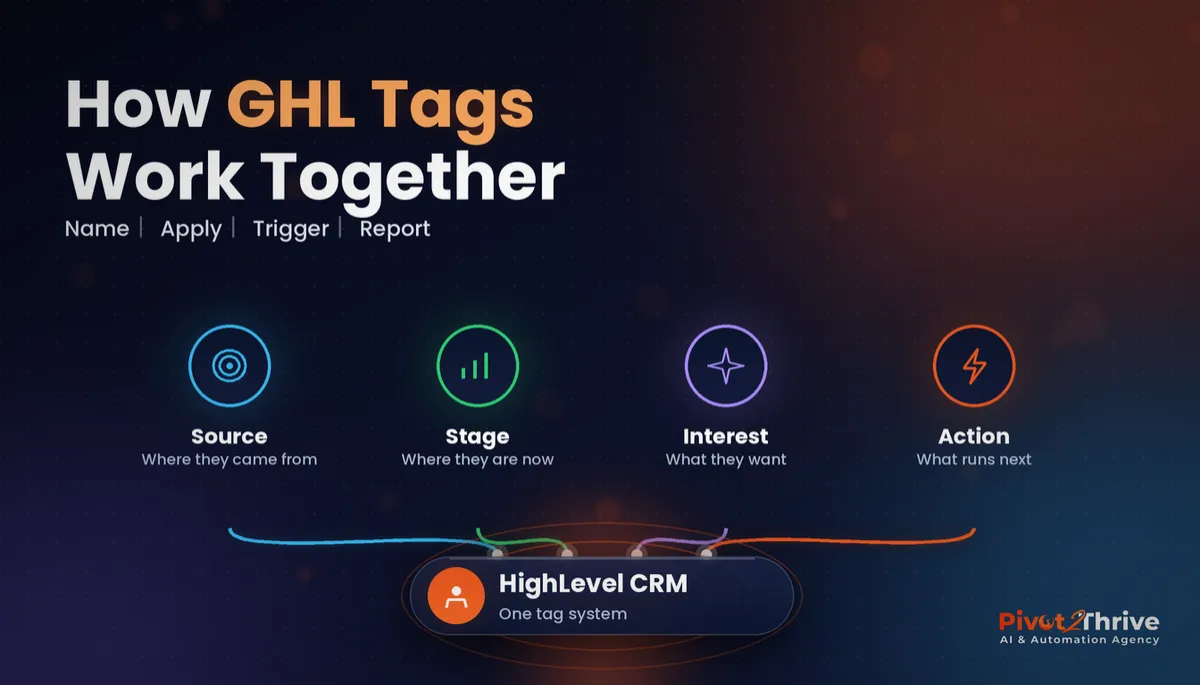
GoHighLevel tags are the quiet backbone of every sub-account: they trigger workflows, build smart lists and tell your team what a contact needs next. Without a naming system, they turn into hundreds of near-duplicates like "Lead", "lead", "new-lead" and "Lead FB" — and automations start firing on the wrong people.
This guide gives you a simple, four-type tag naming system you can roll out in an afternoon and keep clean for years.
Some links below are affiliate links — if you sign up through them, Pivot 2 Thrive may earn a commission at no extra cost to you. It never changes what we recommend.
Key takeaway: Name every GoHighLevel tag with a type prefix — source, stage, interest or action — in lowercase with hyphens, such as "src-facebook-ad" or "act-send-quote". Let one action tag start one workflow, remove it when the job is done, and audit your tag list monthly so duplicates never build up.
On This Page
- GoHighLevel Tags Are Labels That Drive Your Automations
- Why a GoHighLevel Tag Naming System Matters
- The 4-Type GoHighLevel Tag Naming System (Step by Step)
- An Australian Example: Cleaning Up Tags for a Melbourne Allied Health Group
- Common GoHighLevel Tag Mistakes to Avoid
- Frequently Asked Questions About GoHighLevel Tags
- Related Articles
This guide is written by Dr Priya Jaganathan, founder of Pivot 2 Thrive, a Go High Level Certified Admin, Certified AI Tech Stack Consultant and keynote speaker on AI for business. Priya has cleaned up and rebuilt dozens of HighLevel sub-accounts for Australian agencies and service businesses, and messy tags are the most common cause of misfiring automations she sees.
GoHighLevel Tags Are Labels That Drive Your Automations
GoHighLevel tags are simple text labels attached to a contact record. They can be added manually, by forms, by imports, by workflows or by your AI agent, and they can be used as workflow triggers, filters and smart list conditions.
Because almost everything in HighLevel can read or write a tag, tags are effectively your CRM's shared language. Custom fields store facts about a contact; tags store states and signals. If you need to store a value such as a budget or a suburb, use a custom field — our guide to custom values and trigger links covers the difference.
Why a GoHighLevel Tag Naming System Matters
Messy tags do not fail loudly. They fail quietly: a nurture sequence misses half your leads because some were tagged "Webinar" and others "webinar-2026", or a client gets a "new lead" message after they have already paid.
The cost shows up in three places. Workflows misfire, smart lists undercount, and reporting by lead source becomes guesswork. Every new team member or contractor who touches the account adds their own spelling, so the problem compounds over time.
A naming system fixes this at the source. It also makes GoHighLevel smart lists and lead scoring far more reliable, because both depend on tags being consistent.
The 4-Type GoHighLevel Tag Naming System (Step by Step)
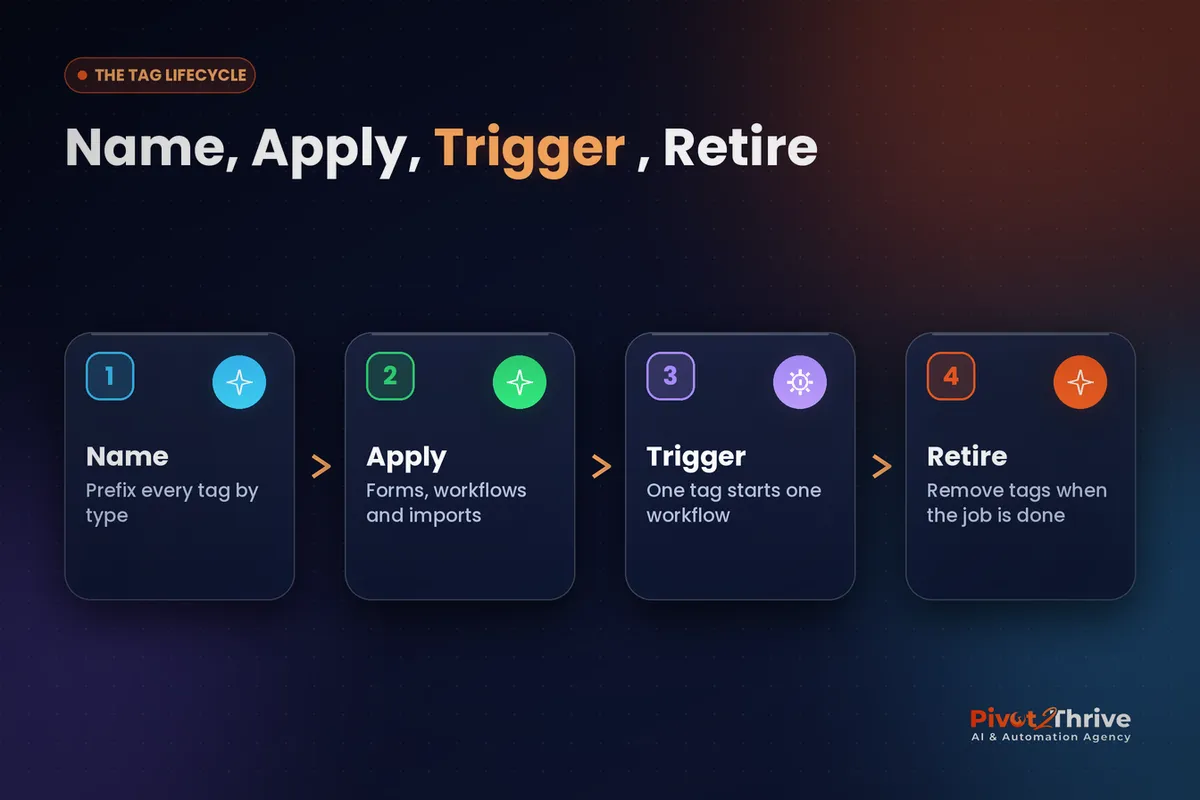
Here is the system we install in every Pivot 2 Thrive build. It uses four tag types, each with a short prefix, all lowercase with hyphens and no spaces.
| Tag type | Prefix | Answers the question | Examples |
|---|---|---|---|
| Source | src- | Where did this contact come from? | src-facebook-ad, src-website-form, src-referral |
| Stage | stg- | Where are they in the journey right now? | stg-new-lead, stg-booked, stg-client, stg-past-client |
| Interest | int- | What are they interested in? | int-ai-receptionist, int-window-clean, int-webinar-oct |
| Action | act- | What should happen next? | act-send-quote, act-start-nurture, act-request-review |
1. Export and review your current tags
Open Settings, then Tags, and list everything you have. Group near-duplicates together and note which workflows, forms and smart lists use each one. Do not delete anything yet.
2. Agree the four prefixes and the format rules
Lowercase, hyphens instead of spaces, no emojis, no dates unless the tag is genuinely time-bound (such as a specific webinar). Write these rules into your SOPs so every builder follows them.
3. Map old tags to new names
Build a simple two-column list: old tag on the left, new tag on the right. Several old tags will usually collapse into one new tag, which is exactly the point.
4. Bulk-apply the new tags, then update triggers
Use a smart list filtered by the old tag, bulk-add the new tag, then update every workflow trigger, filter and form to use the new name. Test each workflow with a test contact before moving on — our workflow troubleshooting guide shows how.
5. Use one action tag per workflow
Each act- tag should start exactly one workflow, and that workflow should remove the tag as its final step. This makes actions repeatable: adding "act-send-quote" again later simply runs the quote workflow again.
6. Keep stage tags in step with your pipeline
If you use pipelines, let opportunity stage changes add and remove the matching stg- tags automatically, so you never have a contact tagged both "stg-new-lead" and "stg-client". Our pipeline stages guide covers the pipeline side.
7. Retire old tags and audit monthly
Once nothing references an old tag, delete it. Then put a 15-minute monthly tag audit in the calendar: look for new tags without a prefix and fix them before they spread.
Want your sub-account audited and your tag system rebuilt properly? Book a free strategy call with Pivot 2 Thrive and we will map it with you.
Not on HighLevel yet? Start with a free 30-day trial — enough time to build everything in this guide before you pay a cent.
An Australian Example: Cleaning Up Tags for a Melbourne Allied Health Group
Picture a Melbourne allied health group with three clinics sharing one HighLevel sub-account. Over two years, front-desk staff, a marketing contractor and an agency have created more than 300 tags, with five different spellings of "new patient".
The cleanup maps those 300 tags down to a few dozen under the four prefixes. Each clinic gets its own source tags, and every reminder and recall workflow is triggered by one act- tag.
The practice manager can finally trust the reports, because a smart list of "src-google-ads" now shows every Google lead, not just the ones someone remembered to spell correctly. The same structure powers the rebooking cycles in our sibling guide on AI for window cleaners in Australia.
Common GoHighLevel Tag Mistakes to Avoid
- Storing data in tags. Budgets, suburbs and dates belong in custom fields, not tags like "budget-5k".
- Never removing action tags. If act- tags stay on, workflows cannot be re-triggered and lists fill with stale signals.
- Letting every tool invent tags. Forms, imports and integrations should all use your agreed names.
- Deleting tags before updating triggers. Always update workflows first, then delete.
- Skipping the monthly audit. Tag mess grows a few tags at a time; a short audit stops it early.
Frequently Asked Questions About GoHighLevel Tags
What are tags used for in GoHighLevel?
Tags are labels on a contact record that trigger workflows, filter smart lists and segment campaigns. They are best used for states and signals, such as lead source, journey stage, interests and the next action to run.
What is the best way to name tags in GoHighLevel?
Use a short type prefix such as src-, stg-, int- or act-, followed by a lowercase, hyphenated description like src-facebook-ad. Consistent prefixes keep tags grouped, searchable and easy to audit.
Should I use tags or custom fields in GoHighLevel?
Use custom fields for values that describe a contact, such as budget, suburb or appointment date. Use tags for yes-or-no states and signals that trigger automations or build lists.
How many tags should a GoHighLevel sub-account have?
There is no fixed number, but a well-run account usually has a few dozen purposeful tags rather than hundreds. If you cannot explain what a tag does, it probably should be merged or retired.
Can I bulk-rename tags in GoHighLevel?
The safest approach is to filter contacts by the old tag in a smart list, bulk-add the new tag, update every workflow and form that uses it, and then delete the old tag once nothing references it.
Why are my GoHighLevel workflows not triggering on a tag?
The most common causes are a spelling or capitalisation mismatch, the tag already being on the contact so no 'tag added' event fires, or the workflow being in draft. Removing action tags at the end of each workflow prevents the second issue.
Ready for a CRM your whole team can trust? Book your strategy call here, or see what we build at Pivot 2 Thrive.
Still deciding on a platform? Try HighLevel free for 30 days and build your tag system before you commit.
Related Articles
Our services
More GoHighLevel setup guides
- GoHighLevel Smart Lists: How to Segment Your Contacts
- GoHighLevel Forms and Surveys Setup Guide
- GoHighLevel Lead Scoring Setup Guide
- Cold Email for AI Agencies in Australia
Everything else
