
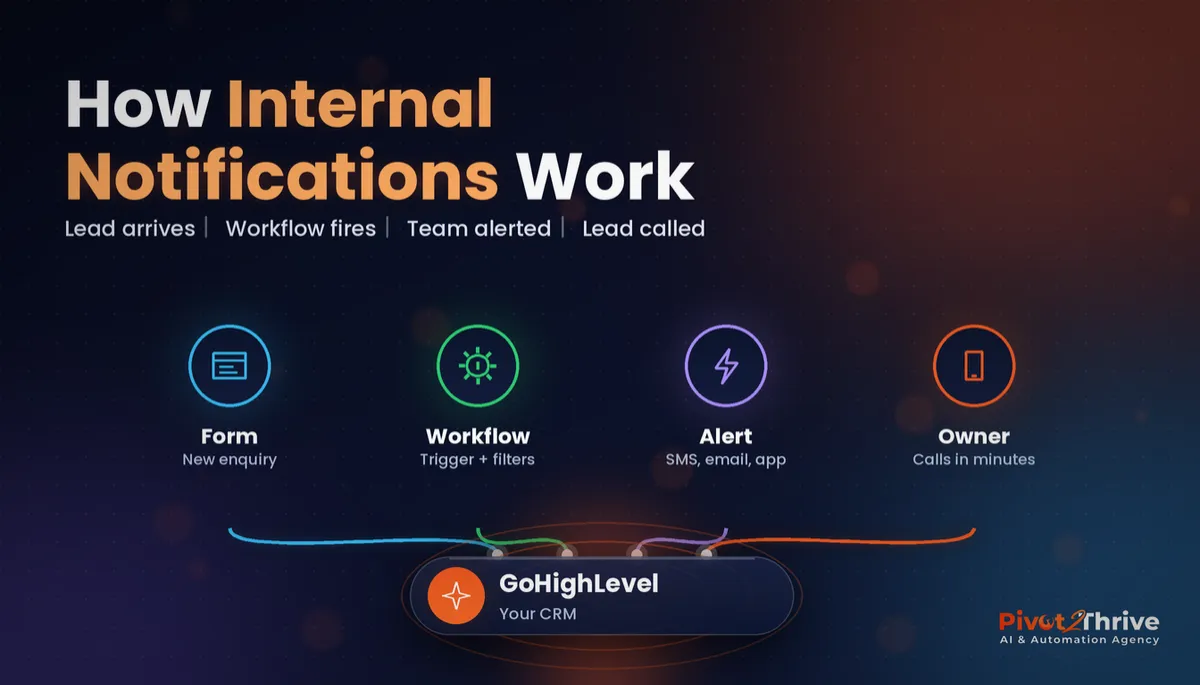
GoHighLevel Internal Notifications: Alert Your Team the Moment a Hot Lead Arrives (2026 Guide)
Last updated: November 2026.
 By Dr Priya Jaganathan, Certified AI Tech Stack Consultant · Pivot 2 Thrive · Updated 16 November 2026 · 5 min read
A step-by-step guide to building GoHighLevel workflow alerts that reach the right person on the right channel, without burying your team in noise.
GoHighLevel internal notifications are the difference between a lead that gets called in five minutes and one that sits in the CRM until Monday. The automation catches the enquiry; the internal notification makes sure a human actually knows about it.
Some links below are affiliate links — if you sign up through them, Pivot 2 Thrive may earn a commission at no extra cost to you. It never changes what we recommend.
Add an Internal Notification action to the workflows that matter, such as new form enquiries, missed calls and high-value bookings. Filter so only genuine, urgent leads trigger an alert, send it by SMS or mobile app push to the assigned user with the lead's name, phone and enquiry in the message, and escalate to a backup person if nobody responds within 10 minutes.
I'm Dr Priya Jaganathan — Go High Level Certified Admin, Certified AI Tech Stack Consultant and keynote speaker. At Pivot 2 Thrive I build these systems for Australian businesses every week, so this guide is written from the build, not the brochure.
GoHighLevel internal notifications are alerts for your team, not your leads
GoHighLevel internal notifications are workflow actions that send a message to your own staff, rather than to the contact. They can go out by email, SMS or as an in-app and mobile app notification, and can be addressed to the contact's assigned user, a specific user, all users or a set email address.
They sit inside any workflow, so the trigger can be a form submission, an inbound call, a booked appointment, a pipeline stage change or a reply. The message can include merge fields such as the contact's name, phone number and the answers they gave.
They pair naturally with round robin calendars: the lead is assigned fairly, then the assigned person is told immediately.
Why GoHighLevel internal notifications protect your speed to lead
Response time is the most studied lever in lead conversion. The Harvard Business Review study "The Short Life of Online Sales Leads" (2011) found firms that contacted a web lead within an hour were about seven times more likely to have a meaningful conversation with a decision-maker than firms that waited even an hour longer.
Automated text-backs and AI replies buy you time, but many deals still need a person on the phone. If nobody knows the lead exists, that call never happens.
Notifications also create accountability. When an alert names the assigned person, it is clear who owns the follow-up. For the bigger picture on response times, read our guide to the 60-second speed-to-lead rule.
How to set up GoHighLevel internal notifications in 7 steps
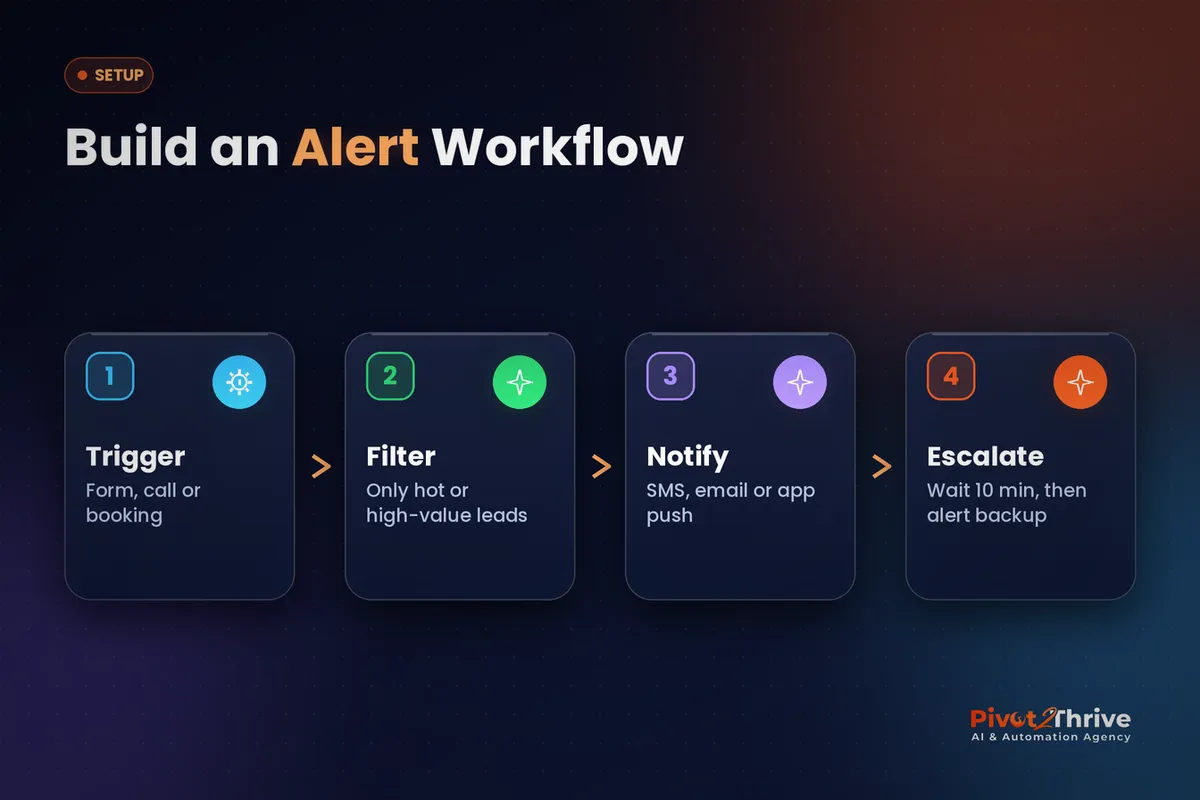
This is for business owners and agency builders who already have workflows running. Allow about an hour for the first alert workflow, then 15 minutes for each one after that.
1. Pick the moments that deserve a human. List the events where a fast call changes the outcome: new quote requests, missed calls from new numbers, high-value bookings and replies to a proposal. Everything else can wait for the daily review.
2. Create the workflow trigger. In Automation, build a workflow with the matching trigger, for example Form Submitted or Customer Booked Appointment. Use the trigger's filters to target the right form or calendar.
3. Add a filter for quality. Use an If/Else branch on fields such as budget, service type or postcode, so alerts only fire for leads you would genuinely drop everything for. Alert fatigue is the fastest way to get notifications ignored.
4. Choose the channel. Add the Internal Notification action and pick the type that suits the urgency.
| Channel | Speed | Best for | Watch-out |
|---|---|---|---|
| SMS | Seconds, hard to miss | Hot leads, missed calls | Uses SMS credits; keep it to urgent alerts |
| Mobile app notification | Seconds, if the app is installed | Teams already using the LeadConnector app | Staff must enable app notifications |
| In-app notification | Only when logged in | Office-based teams at desks | Missed after hours |
| Minutes, easy to bury | Daily summaries, low urgency | Not for hot leads |
5. Write a message that can be acted on from a phone. Include the contact's name, phone, what they asked for and where they came from, using merge fields. The person reading it should be able to call without opening the CRM.
6. Send it to the assigned user. Address the alert to the contact's assigned user so ownership is clear, with a specific fallback user for unassigned leads.
7. Add an escalation. After the alert, add a 10-minute wait, then check whether the contact has been called or the opportunity has moved stage. If not, notify a manager or backup person. Goal events, covered in our workflow goal events guide, let you stop the escalation once the lead is handled.
Test every workflow with your own details before publishing it, and check that the alert arrives on the actual phone of the person responsible.
An automation that catches the lead but tells no one is just a faster way to ignore it.
Not on HighLevel yet? Start with a free 30-day trial — enough time to build everything in this guide before you pay a cent.
An Australian example: a Brisbane renovation business
Here is an illustrative scenario, not a real client. A Brisbane bathroom renovation business gets quote requests through a website form, and the owner spends most days on site.
They add an internal SMS notification to the quote workflow, filtered to jobs over a set budget, with the client's name, suburb, phone and job description in the message. If the opportunity hasn't moved to "Contacted" within 10 minutes, the office manager gets a second alert.
Smaller jobs still get an automated reply and land in a daily email summary, so the owner's phone only buzzes for the work that matters.
The owner notices that big quote requests now get a call back the same hour, often while the client is still comparing builders.
GoHighLevel internal notification mistakes to avoid
- Alerting on everything. If every newsletter sign-up buzzes a phone, staff mute the alerts. Filter for genuine, urgent leads only.
- Using email for hot leads. Email is fine for summaries but too slow for a lead who is calling your competitors. Use SMS or app notifications.
- Vague messages. "New lead in CRM" forces someone to log in. Put the name, phone and enquiry in the alert itself.
- No owner. Sending alerts to all users means everyone assumes someone else will call. Send to the assigned user, with one named fallback.
- Forgetting after-hours rules. Decide who gets alerts outside business hours, or pair them with your business hours and holiday closure setup.
Get these right and your automations stop being a black box: the right person knows about the right lead, every time.
Frequently Asked Questions
What is an internal notification in GoHighLevel?
An internal notification is a workflow action that alerts your own team rather than the contact. It can be sent by email, SMS or as an in-app or mobile app notification, and can include merge fields such as the lead's name and phone number.
How do I get GoHighLevel notifications on my phone?
Either use the SMS type of the Internal Notification action, sent to your mobile number, or install the LeadConnector mobile app and enable its notifications so app alerts reach your phone.
Who can receive a GoHighLevel internal notification?
You can send it to the contact's assigned user, a particular user, all users, or a specific email address or phone number depending on the notification type. Sending to the assigned user makes ownership clearest.
How do I stop too many GoHighLevel notifications?
Add If/Else filters before the notification so it only fires for leads that meet your criteria, such as budget or service type. Send everything else to a daily email summary instead.
Can GoHighLevel escalate a lead if nobody responds?
Yes. Add a wait step after the first alert, then check whether the opportunity stage or a tag has changed. If not, send a second internal notification to a manager or backup person.
Do internal SMS notifications cost money in GoHighLevel?
Internal SMS alerts are sent through your account's phone system, so they use messaging credits like other SMS. Keep SMS for urgent alerts and use email or app notifications for lower-priority updates.
Still deciding on a platform? Try HighLevel free for 30 days and build your first alert workflow today.
Related Articles
Our services
- PowerPivot Leads Pro — AI lead generation and follow-up
- AI Receptionist Agent — answer every call, 24/7
Keep reading
 Speed to Lead: The 60-Second Rule That Wins More Clients
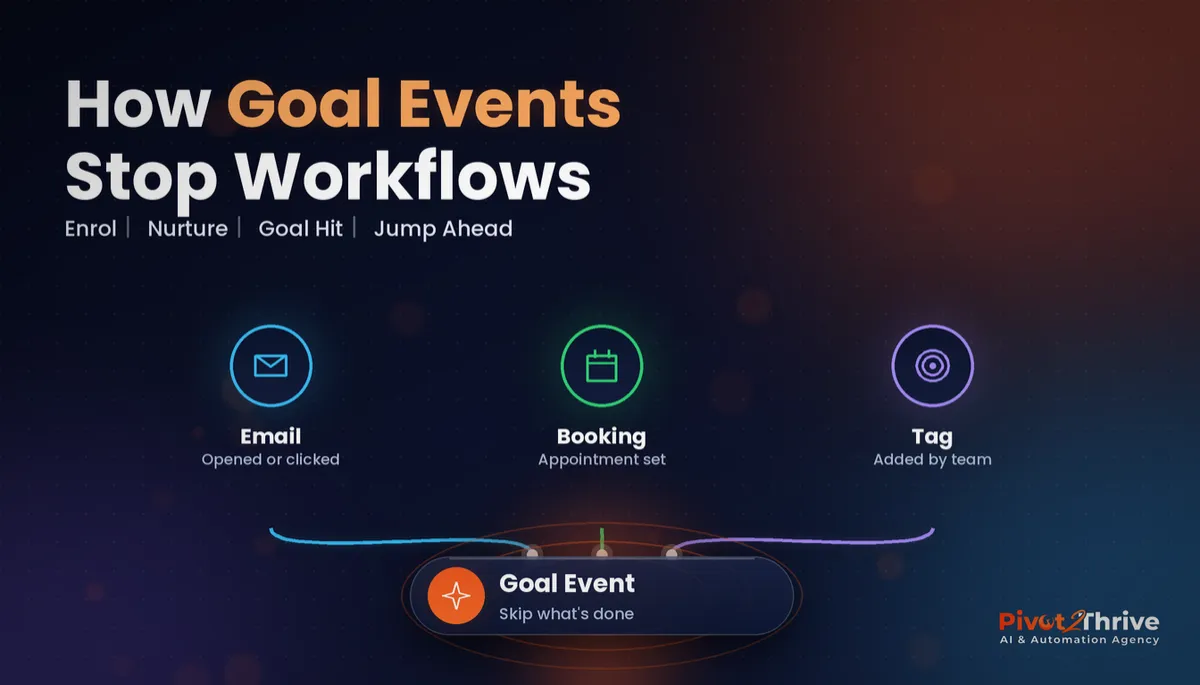 GoHighLevel Workflow Goal Events: Stop Chasing Leads Who Have Already Booked
 GoHighLevel Round Robin Calendars: Share Leads Fairly Across Your Team
 GoHighLevel Forms: Build Enquiry Forms That Qualify and Route LeadsAI Agency Demo Account: How I Would Build a Sandbox That Sells Itself
Everything else