
GoHighLevel Tasks: Make Sure Every Follow-Up Actually Happens (2026 Guide)
Last updated: November 2026.
 By Dr Priya Jaganathan, Certified AI Tech Stack Consultant · Pivot 2 Thrive · Updated 17 November 2026 · 6 min read
How to use GoHighLevel tasks so every callback, quote and follow-up has an owner and a due date — and how to let workflows create them for you.
GoHighLevel tasks are the simplest fix for the most expensive habit in small business: “I'll call them back later.” Without a task, that callback lives in someone's head or on a sticky note, and it disappears the moment the day gets busy.
Some links below are affiliate links — if you sign up through them, Pivot 2 Thrive may earn a commission at no extra cost to you. It never changes what we recommend.
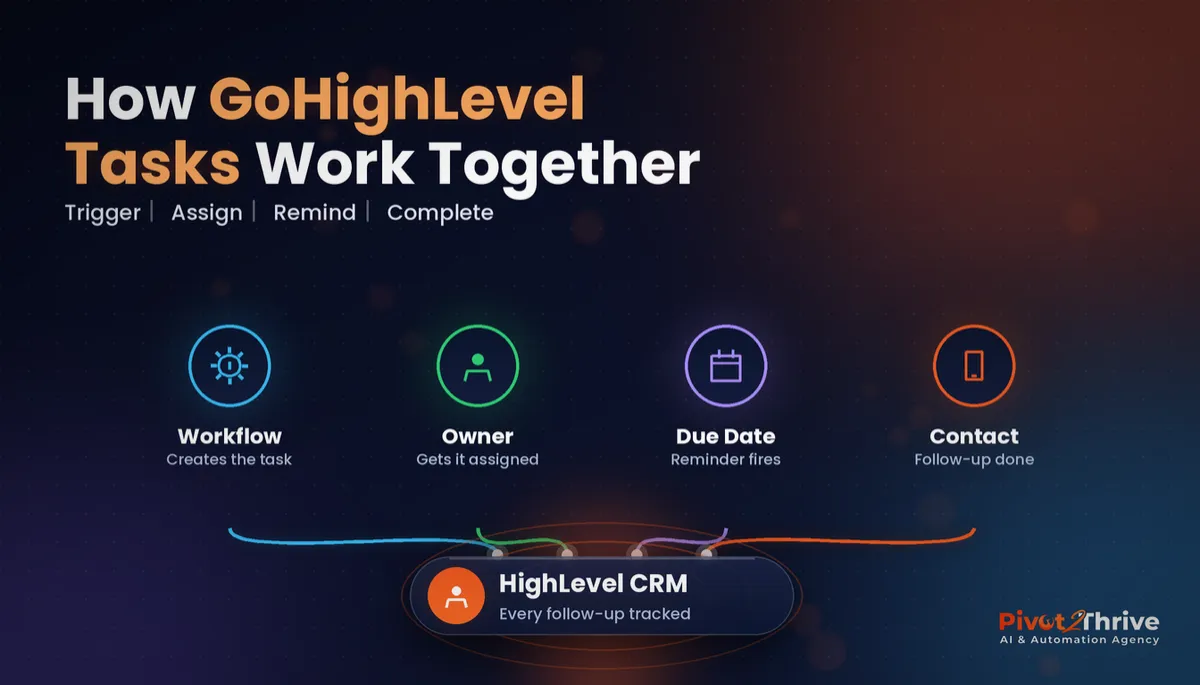
A GoHighLevel task is a to-do attached to a contact, with an owner and a due date. Let workflows create tasks automatically at key moments — new enquiry, quote sent, missed call — and review overdue tasks every morning so no follow-up slips.
I'm Dr Priya Jaganathan — Go High Level Certified Admin, Certified AI Tech Stack Consultant and keynote speaker. At Pivot 2 Thrive I build these systems for Australian businesses every week, so this guide is written from the build, not the brochure.
GoHighLevel tasks are…
GoHighLevel tasks are to-do items linked to a contact record, each with a title, description, assigned user and due date. They appear on the contact, on the Tasks list and in the mobile app.
The difference from a notepad is context. Open the task and you see the contact's full conversation history, opportunity and notes in one click.
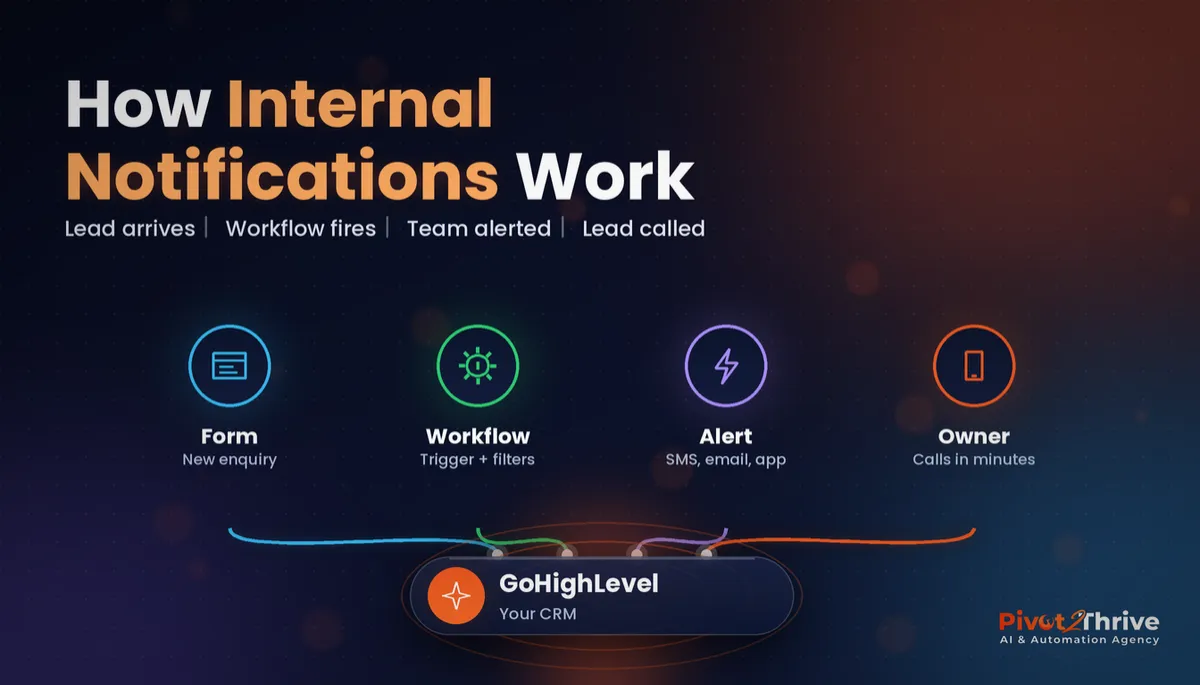
Tasks work best alongside alerts. Our guide to GoHighLevel internal notifications covers the instant ping; the task is what stays on the list until the job is done.
Why GoHighLevel tasks stop leads falling through the cracks
Automation handles the first reply, but many sales still need a human step: a callback, a site visit, a custom quote. Those human steps are where leads quietly die.
Tasks make each step visible, owned and dated. A manager can see at a glance who has overdue follow-ups instead of discovering a lost deal weeks later.
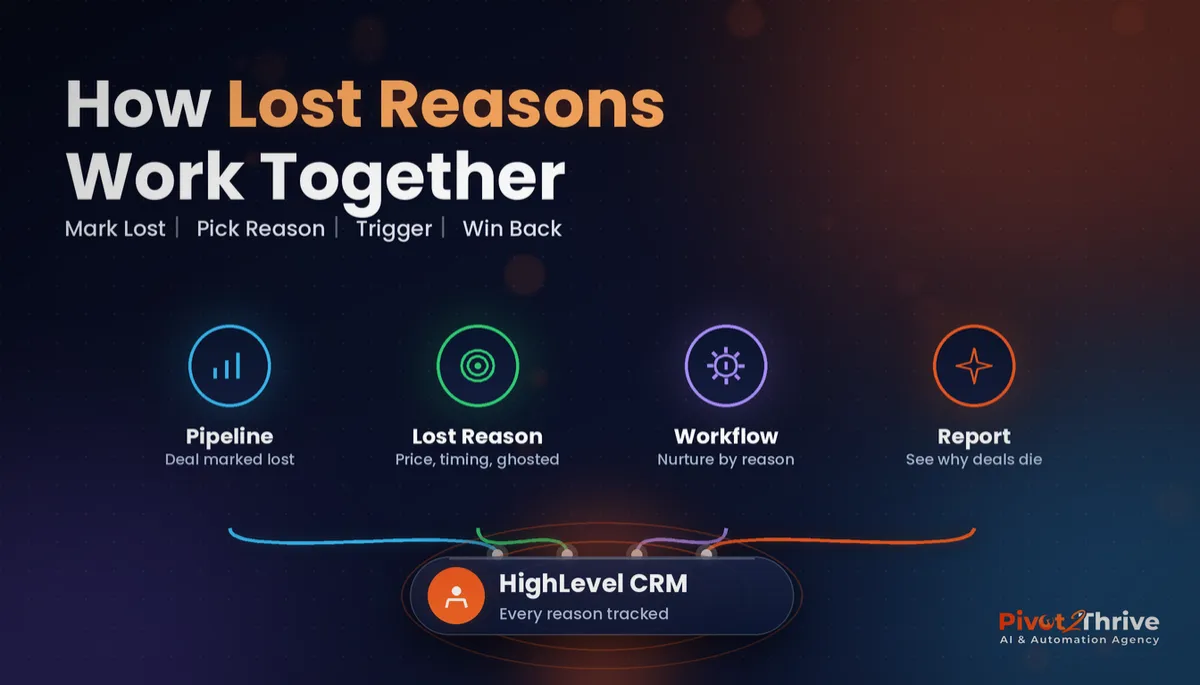
They also make your lost reasons reporting honest. When every deal has a completed follow-up history, you know whether it was lost on price or simply never chased.
How to set up GoHighLevel tasks and automate them in 6 steps
This set-up suits any service business or agency on HighLevel. Allow an afternoon to build it and a week to tune it.
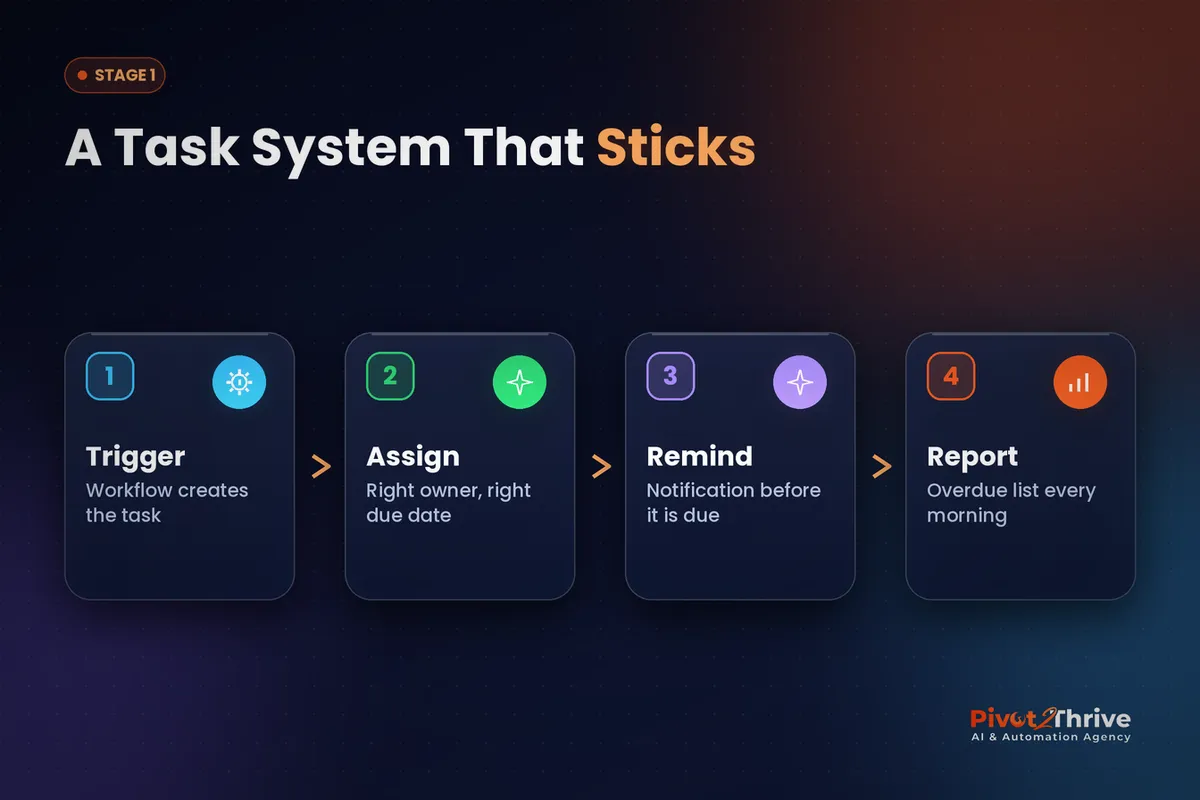
1. Decide which moments need a human. List the points where a person must act: new enquiry not booked within an hour, quote sent three days ago, missed call, no-show. Each becomes a task rule.
2. Name tasks consistently. Use a pattern like “Call back — website enquiry” or “Chase quote — day 3”. Consistent names make the Tasks list easy to scan and filter.
3. Create tasks from workflows. In Automation, add the Add Task action to your workflows with a title, description, assignee and due date offset. The task appears on the contact the moment the trigger fires.
| Trigger | Task created | Assigned to | Due |
|---|---|---|---|
| New form or chat enquiry | Call back — new enquiry | Contact owner or round robin | Within 1 hour |
| Missed call | Return missed call | Front desk | Same day |
| Opportunity moved to Quote Sent | Chase quote | Sales rep | 3 days later |
| Appointment no-show | Rebook no-show | Contact owner | Next business day |
| Opportunity marked Won | Onboarding welcome call | Account manager | Within 2 days |
4. Assign the right owner. Assign to the contact owner where you can, so tasks follow the relationship. For shared inboxes, pair tasks with round robin assignment.
5. Turn on reminders and close the loop. Make sure users have task notifications switched on, and use task-based workflow triggers (such as a task being completed) to move the next step along — for example, sending a follow-up email once the callback is logged.
6. Review overdue tasks daily. Filter the Tasks list to overdue and incomplete each morning. Five minutes in a team huddle beats a week of lost follow-ups. Pair this with workflow goal events so automated chasers stop when a lead books.
Start with two or three task rules, not ten. Too many auto-created tasks and the team learns to ignore the list.
A follow-up that lives in someone's head isn't a process. A task with an owner and a due date is.
Not on HighLevel yet? Start with a free 30-day trial — enough time to build everything in this guide before you pay a cent.
An Australian example: a Perth solar installer chasing quotes
Here is an illustrative scenario, not a real client. A Perth solar installer sends dozens of quotes a month but has no system for chasing them — reps follow up when they remember.
They add three task rules: call back every new enquiry within an hour, chase every quote on day 3, and rebook every missed site assessment the next business day.
Each morning the sales manager opens the overdue filter in the Tasks list during a short stand-up. Reps tick tasks off from the mobile app between site visits.
Within a few weeks, the manager notices far fewer quotes going quiet with no follow-up logged, and lost deals now have a real reason recorded against them.
GoHighLevel task mistakes to avoid
- Unassigned tasks. A task with no owner is a task nobody does. Always set an assignee in the workflow action.
- No due date. Without a due date, tasks never become overdue, so nobody notices them. Use a sensible offset for every rule.
- Task overload. Creating a task for every email open buries the important ones. Reserve tasks for moments that genuinely need a person.
- Never reviewing the list. Tasks only work with a daily check. Put the overdue review in your morning routine.
- Duplicating automation. If a workflow already sends the chaser SMS, don't also create a task to send it. Use tasks for the human step after it.
For the whole follow-up picture, read our cellar door automation guide for a real-world example of tasks handing function enquiries to a coordinator.
Frequently Asked Questions
What are tasks in GoHighLevel?
Tasks in GoHighLevel are to-do items attached to a contact, with a title, description, assigned user and due date. They show on the contact record, the Tasks list and the mobile app, so the team can see and complete follow-ups in context.
Can GoHighLevel workflows create tasks automatically?
Yes. Use the Add Task action in a workflow to create a task with an assignee and a due date whenever a trigger fires, such as a new enquiry, a missed call or an opportunity moving to a quote stage.
How do I see overdue tasks in GoHighLevel?
Open the Tasks list and filter by status and due date to show incomplete, overdue tasks. Many teams review this filtered view every morning so no follow-up slips.
Can I assign GoHighLevel tasks to different team members?
Yes. Each task can be assigned to a specific user, and workflows can assign tasks to the contact owner. Combine this with round robin assignment to spread work fairly across a team.
Do GoHighLevel tasks work on the mobile app?
Yes. Assigned users can view and complete tasks in the HighLevel mobile app, which suits staff who are on the road or on site.
How many automated tasks should I create?
Start with two or three rules for the moments that matter most, such as new enquiries and quote follow-ups. Too many automated tasks trains the team to ignore the list.
Still deciding on a platform? Try HighLevel free for 30 days and set up your first three task rules this week.
Related Articles
Our services
- PowerPivot Leads Pro — AI lead generation and follow-up
- AI Receptionist Agent — answer every call, 24/7
Keep reading
 GoHighLevel Internal Notifications
 GoHighLevel Lost Reasons
 GoHighLevel Pipeline Stages Setup
 AI Agency Revenue Share Deals
Everything else