
GoHighLevel Workflow Wait Steps: Time Every Follow-Up So Leads Actually Reply (2026 Guide)
Last updated: November 2026.
 By Dr Priya Jaganathan, Certified AI Tech Stack Consultant · Pivot 2 Thrive · Updated 20 November 2026 · 8 min read
How to use GoHighLevel wait steps so your follow-up texts and emails arrive when people are ready to answer, not at 2am on a Sunday.
A GoHighLevel workflow wait step is the small action that decides whether your follow-up feels helpful or pushy. Most broken automations we audit don't have a bad message problem — they have a timing problem: three texts in ten minutes, a nurture email at midnight, or a reminder that fires after the lead has already booked.
Some links below are affiliate links — if you sign up through them, Pivot 2 Thrive may earn a commission at no extra cost to you. It never changes what we recommend.
Use a short time delay for the first touch, a wait-for-reply step with a timeout for every follow-up after that, and an advanced send window so messages only go out during sensible local hours. Pair every wait with a goal or If/Else check so nobody gets chased after they've replied or booked.
I'm Dr Priya Jaganathan — Go High Level Certified Admin, Certified AI Tech Stack Consultant and keynote speaker. At Pivot 2 Thrive I build these systems for Australian businesses every week, so this guide is written from the build, not the brochure.
A GoHighLevel workflow wait step is your follow-up's clock
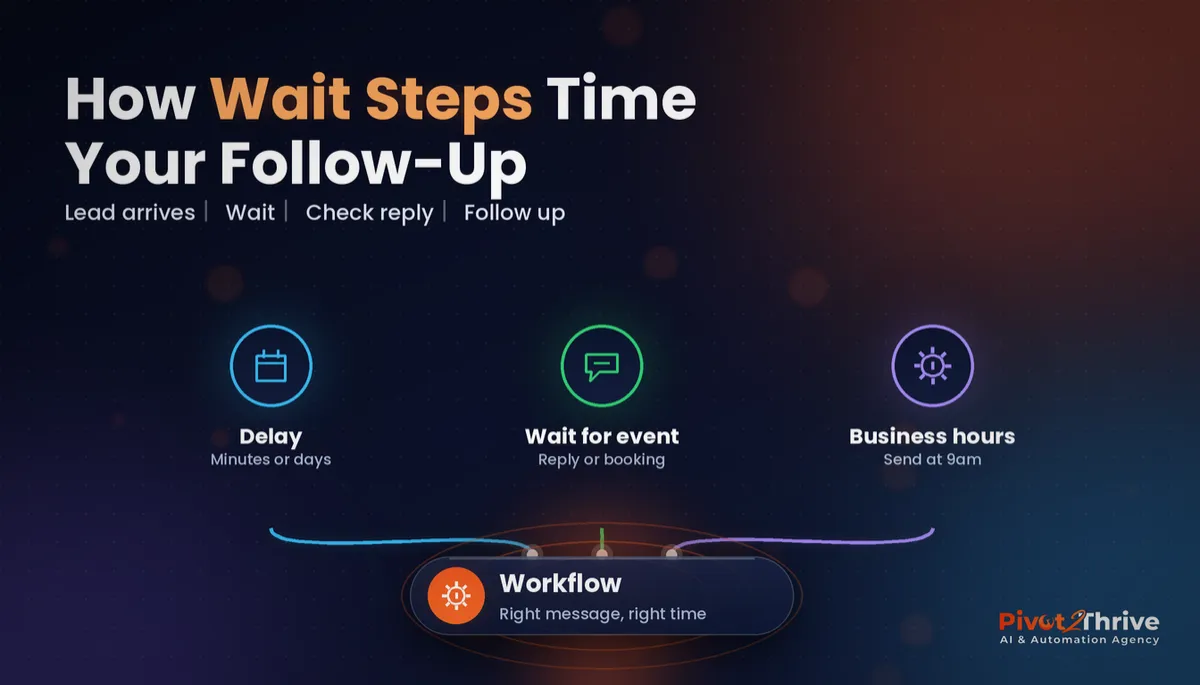
A GoHighLevel wait step is a workflow action that pauses a contact at that point until a set time passes, an event happens, or a condition becomes true. When the pause ends, the contact moves on to the next action.
That sounds simple, but the type of wait you pick changes the whole feel of the sequence. A fixed delay treats every lead the same; a wait-for-reply step reacts to what the lead actually does.
Wait steps work hand in hand with branching. Once a wait ends, an If/Else branch that routes each lead to the right follow-up decides what happens next, based on whether they replied, clicked or booked.
Why follow-up timing matters more than the message
People reply when a message lands at a moment they can deal with it. A text that arrives while someone is driving, putting kids to bed or asleep gets swiped away and forgotten.
There's also a compliance angle in Australia. Under the Telecommunications (Telemarketing and Research Calls) Industry Standard 2017, telemarketing calls are limited to 9am–8pm on weekdays and 9am–5pm on Saturdays, with no calls on Sundays or national public holidays, according to the Do Not Call Register's industry standards page. That standard covers calls rather than texts, but it's a sensible benchmark for any automated outreach, and the Spam Act 2003 separately requires consent, clear sender identification and a working unsubscribe on commercial texts and emails.
Timing also protects your sender reputation. Bursts of messages at odd hours drive opt-outs and spam complaints, which hurts deliverability for every future campaign. If your first response is instant, the rest can afford to be patient — the missed call text back automation is a good example of where instant matters, and where the later touches should slow down.
How to set up GoHighLevel wait steps in 6 steps
This build suits any service business running lead follow-up in GoHighLevel. Allow about 45 minutes for your first sequence, then reuse it as a template.
1. Map the sequence on paper first. Write down each touch, the channel, and what should stop it. For example: instant SMS, wait for reply up to 1 hour, call task, wait 1 day, email, wait for reply up to 2 days, final SMS. If you can't say what ends the sequence, you aren't ready to build it.
2. Send the first touch with no wait at all. The first SMS or email should fire the moment the form is submitted or the call is missed. Speed to lead is won or lost here, so don't put a wait before the first action.
3. Use “wait for contact reply” with a timeout for every follow-up. In the Wait action, choose the reply-based option and set a timeout (for example 1 hour or 1 day). The workflow then splits into two paths: the contact replied, or the timeout ran out. Replies go to a person; timeouts go to the next touch.
4. Pick the right wait type for each job. Use the table below as a cheat sheet.
| Wait type | What it does | Best used for |
|---|---|---|
| Time delay | Pauses for a set number of minutes, hours or days | Spacing touches in a nurture sequence |
| Wait for contact reply | Pauses until the lead replies or a timeout runs out | Every follow-up after the first touch |
| Wait for a condition or event | Pauses until something changes, such as a tag or link click | Moving leads on only after they engage |
| Relative to appointment time | Resumes a set time before or after a booking | Reminders and post-visit follow-ups |
| Advanced send window | Only lets the step resume on chosen days and hours | Keeping messages inside sensible local hours |
5. Add a send window so messages land in sensible hours. In the wait step's advanced settings, restrict resuming to chosen days and times — for example Monday to Friday, 9am to 7pm, and Saturday 9am to 4pm. A lead who enquires at 11pm then gets the next touch at 9am instead of at 11:05pm. Check the location's time zone in settings first, because the window runs on that clock.
6. Protect the sequence with a goal and a stop rule. Add a workflow goal event that stops chasing leads who have already booked, and tick the setting that removes a contact from the workflow when they reply, where that fits your process. Then test with your own mobile number end to end, including the overnight path.
Once this pattern works for new leads, copy it for quote follow-ups, reactivation campaigns and no-show recovery. The waits change; the structure stays the same.
A follow-up sequence without reply-based waits is just a timer firing messages at people. The moment you wait for a reply, your automation starts listening.
Not on HighLevel yet? Start with a free 30-day trial — enough time to build everything in this guide before you pay a cent.
An Australian example: a Brisbane physio clinic's enquiry follow-up
Here is an illustrative scenario based on the kind of build we do regularly. A two-practitioner physio clinic in Brisbane gets most new-patient enquiries through its website form, many of them after 8pm.
The old workflow sent an instant SMS, then two more texts and an email on fixed 15-minute delays. Enquiries that came in late at night received four messages before midnight, and the opt-out rate crept up.
The rebuild kept the instant SMS, then used a wait-for-reply step with a 2-hour timeout and a send window of 8am–7pm weekdays and 8am–1pm Saturdays. Replies triggered an internal notification to the front desk; timeouts moved on to a friendly morning text with the booking link.
The owner's main observation was that the front desk stopped apologising to people who had been “spammed overnight”, and morning replies became the norm rather than the exception.
GoHighLevel wait step mistakes to avoid
- Stacking fixed delays. Three 10-minute delays in a row look robotic. Use a reply-based wait with a timeout so the sequence reacts to the lead.
- Forgetting the time zone. A Perth business on a Sydney location clock sends everything two or three hours early. Set the location time zone before you set any windows.
- No exit when someone books. Without a goal event or booking check, leads who booked keep getting “just checking in” texts. Always add a stop rule.
- Waiting before the first touch. A delay before the first reply throws away your speed-to-lead advantage. The first message should be instant.
- Never testing the overnight path. Most timing bugs only show up after hours. Submit a test enquiry at night and watch what happens the next morning.
Holiday periods need their own care too — our guide to GoHighLevel business hours and Christmas closure auto-replies covers what to change before the break.
Frequently Asked Questions
What does a wait step do in a GoHighLevel workflow?
A wait step pauses a contact at that point in the workflow until a set time passes, an event happens or a condition is met. When the wait ends, the contact continues to the next action. It's how you space out follow-ups and react to replies.
How do I stop a GoHighLevel workflow when a lead replies?
Use a wait-for-contact-reply step with a timeout, then send the reply path to a person or an internal notification. You can also enable the workflow setting that removes contacts when they reply, and add a goal event for bookings so nobody keeps getting chased.
Can GoHighLevel only send messages during business hours?
Yes. The wait step's advanced window lets you choose the days and times a contact is allowed to resume, so a late-night lead gets the next message the following morning. The window runs on the location's time zone, so check that setting first.
How long should I wait between follow-up messages?
Make the first reply instant, then wait for a reply for about an hour before a second touch. After that, space touches a day or two apart and stop after four to six attempts. Adjust based on how quickly your own customers usually respond.
Are there rules about when Australian businesses can contact leads?
Telemarketing calls are limited by the Telecommunications (Telemarketing and Research Calls) Industry Standard 2017 to 9am–8pm weekdays and 9am–5pm Saturdays, with no Sunday or national public holiday calls. Commercial texts and emails must meet the Spam Act 2003, which requires consent, sender identification and an unsubscribe option.
Why are my GoHighLevel messages sending at the wrong time?
The most common cause is a location time zone that doesn't match where the business operates. The second is a fixed delay with no send window, which fires messages at whatever time the delay ends. Set the time zone, then add an advanced window to the wait step.
Still deciding on a platform? Try HighLevel free for 30 days and build your first reply-based follow-up sequence this week.
Related Articles
Our services
- PowerPivot Leads Pro — AI lead generation and follow-up
- AI Receptionist Agent — answer every call, 24/7
Keep reading
 GoHighLevel Workflow If/Else: Route Every Lead to the Right Follow-Up
 GoHighLevel Workflow Goal Events: Stop Chasing Leads Who Have Already Booked
 GoHighLevel Appointment Reminders: Cut No-Shows With Workflows
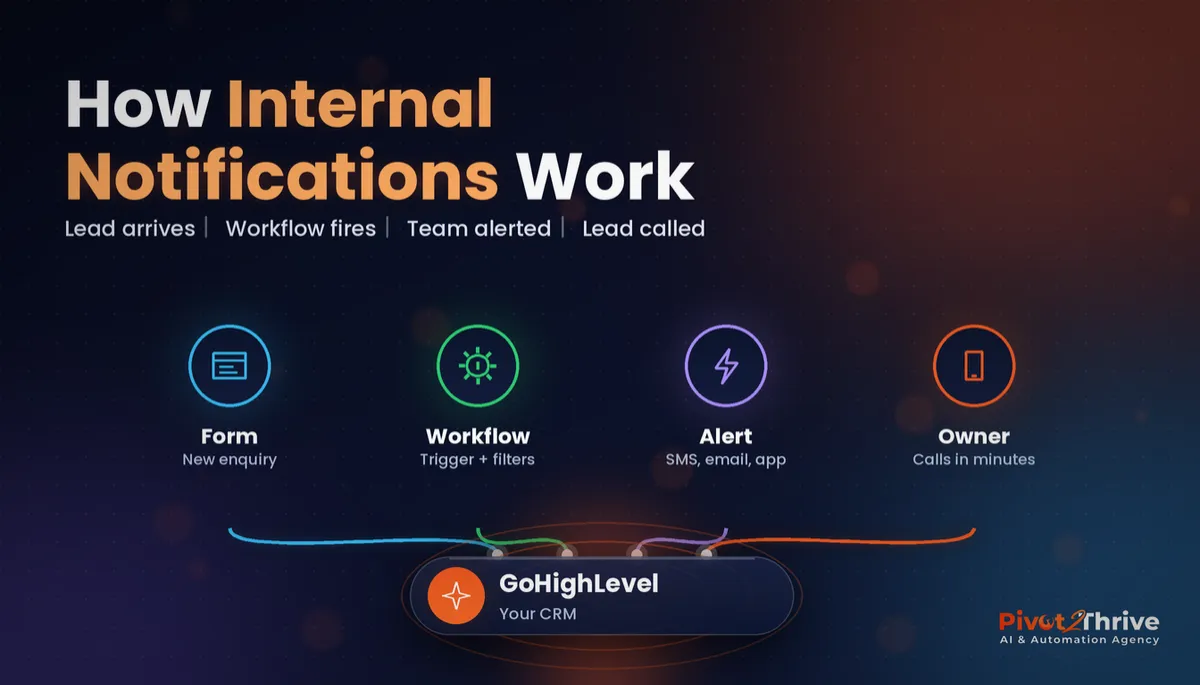 GoHighLevel Internal Notifications: Alert Your Team the Moment a Hot Lead Arrives
Everything else