
GoHighLevel Workflow If/Else: Route Every Lead to the Right Follow-Up (2026 Guide)
Last updated: November 2026.
 By Dr Priya Jaganathan, Certified AI Tech Stack Consultant · Pivot 2 Thrive · Updated 19 November 2026 · 8 min read
How to use GoHighLevel's If/Else action so every enquiry gets the follow-up it deserves — with a build you can copy today.
GoHighLevel workflow If/Else branches are the difference between a CRM that sends everyone the same message and one that responds like your best salesperson. Most Australian businesses I audit run a single straight-line workflow per form, so a high-value enquiry and a price-shopper get the identical three emails. This guide shows you how to split them properly.
Some links below are affiliate links — if you sign up through them, Pivot 2 Thrive may earn a commission at no extra cost to you. It never changes what we recommend.
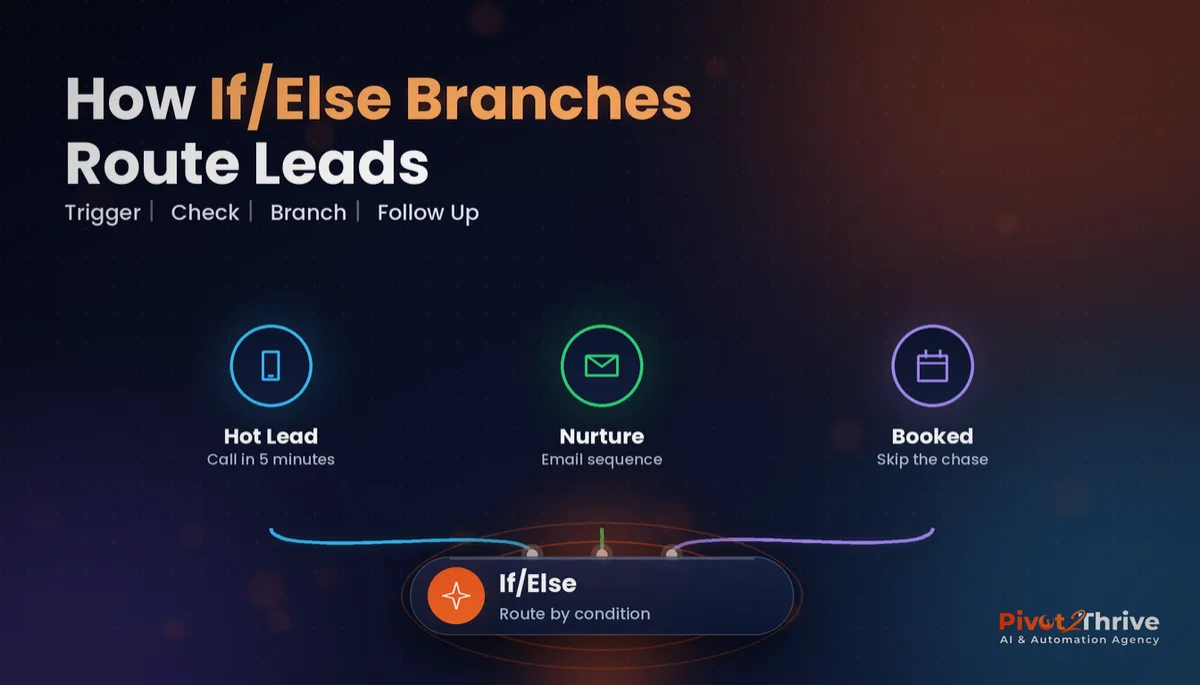
The If/Else action checks each contact against conditions you set — a budget answer, a service, a tag — and sends them down the matching branch. Build one branch per follow-up that genuinely differs, keep conditions mutually exclusive, and always handle the None branch so no lead falls through.
I'm Dr Priya Jaganathan — Go High Level Certified Admin, Certified AI Tech Stack Consultant and keynote speaker. At Pivot 2 Thrive I build these systems for Australian businesses every week, so this guide is written from the build, not the brochure.
GoHighLevel workflow If/Else is…
A GoHighLevel workflow If/Else is a decision step inside a workflow. When a contact reaches it, HighLevel checks their data against the conditions on each branch and moves them down the first path they qualify for.
Each branch can hold its own actions: SMS, emails, tasks, assignments, tags or another If/Else. Contacts that meet none of the conditions take the None branch.
It pairs naturally with good segmentation. If you already use GoHighLevel Smart Lists to segment contacts, If/Else is the same idea applied in real time, the second a lead arrives.
Why lead routing decides who gets called first
Speed matters most for the leads worth the most. Harvard Business Review's 2011 study "The Short Life of Online Sales Leads" found firms that contacted a web lead within an hour were about seven times more likely to qualify it than firms that waited even one hour longer.
You cannot call every lead within the hour. You can make sure the right ones are, and that is exactly what an If/Else does: it puts your highest-value enquiries in front of a person immediately and lets automation carry the rest.
It also protects your team's attention. When every lead creates a call task, people start ignoring tasks. When only branch-qualified leads do, every follow-up task actually gets done.
How to build a GoHighLevel If/Else branch in 8 steps
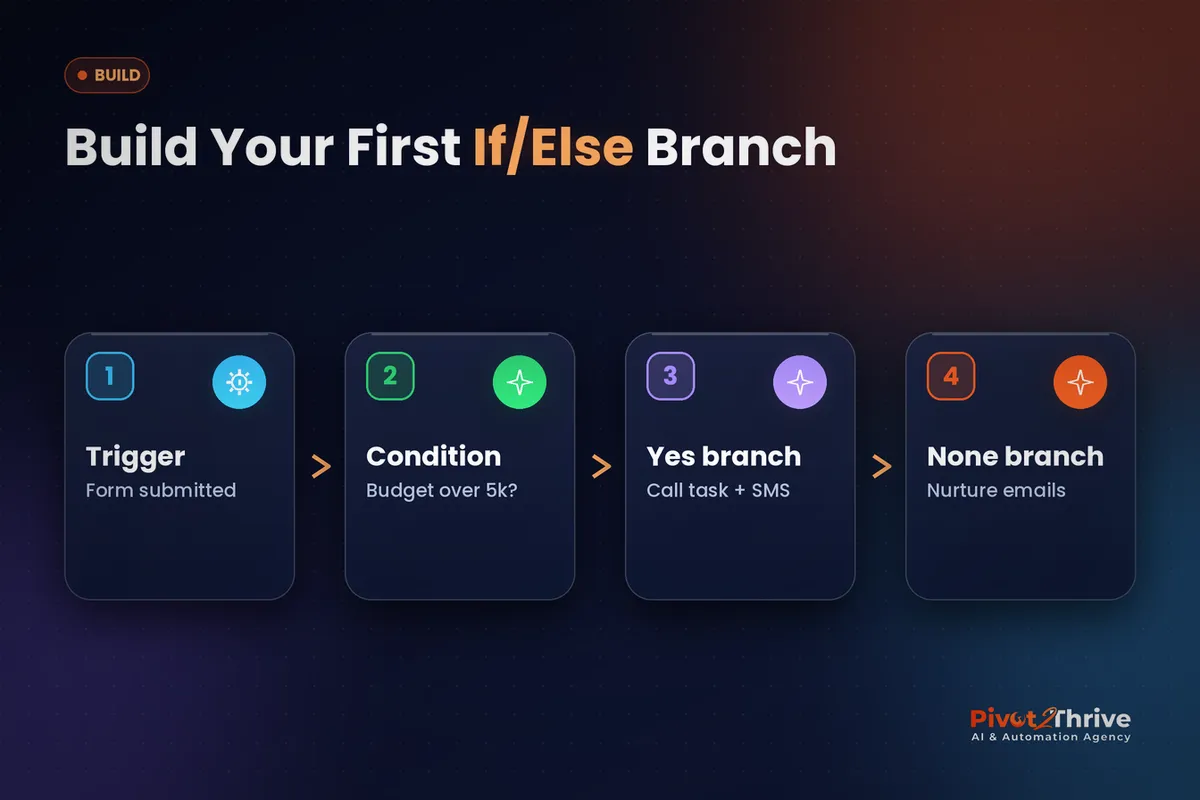
This build takes about 45 minutes for a single enquiry form. You need admin access to the sub-account and one form that already captures the fields you want to route on.
1. Pick the one question that changes the follow-up. Look at your enquiry form and find the answer that genuinely changes what you do next: service type, budget, suburb or urgency. If an answer would not change the follow-up, it does not deserve a branch.
2. Make that answer a clean field. Use a dropdown or radio custom field, never a free-text box, so the values are predictable. "Budget: Under $5k / $5k–$15k / Over $15k" routes perfectly; "Tell us your budget" routes nothing. Our guide to structuring GoHighLevel custom fields covers the naming rules.
3. Build the trigger and add a short wait. Create the workflow with a Form Submitted trigger filtered to your form. Add a one-minute wait so every field and tag has landed on the contact before any condition is checked.
4. Add the If/Else action and name every branch. Insert If/Else, then create one branch per outcome with a plain-English name such as "High budget — call today". Order them from most specific to broadest and keep the conditions mutually exclusive.
| Branch | Condition | Follow-up actions |
|---|---|---|
| High budget | Budget = Over $15k | Assign to owner, create call task due in 15 minutes, internal SMS alert |
| Mid budget | Budget = $5k–$15k | Instant SMS with booking link, email case study, call task next morning |
| Low budget | Budget = Under $5k | Email starter guide, add to nurture campaign, no call task |
| None | Field empty or unexpected value | Tag needs-review, notify the team to check the record |
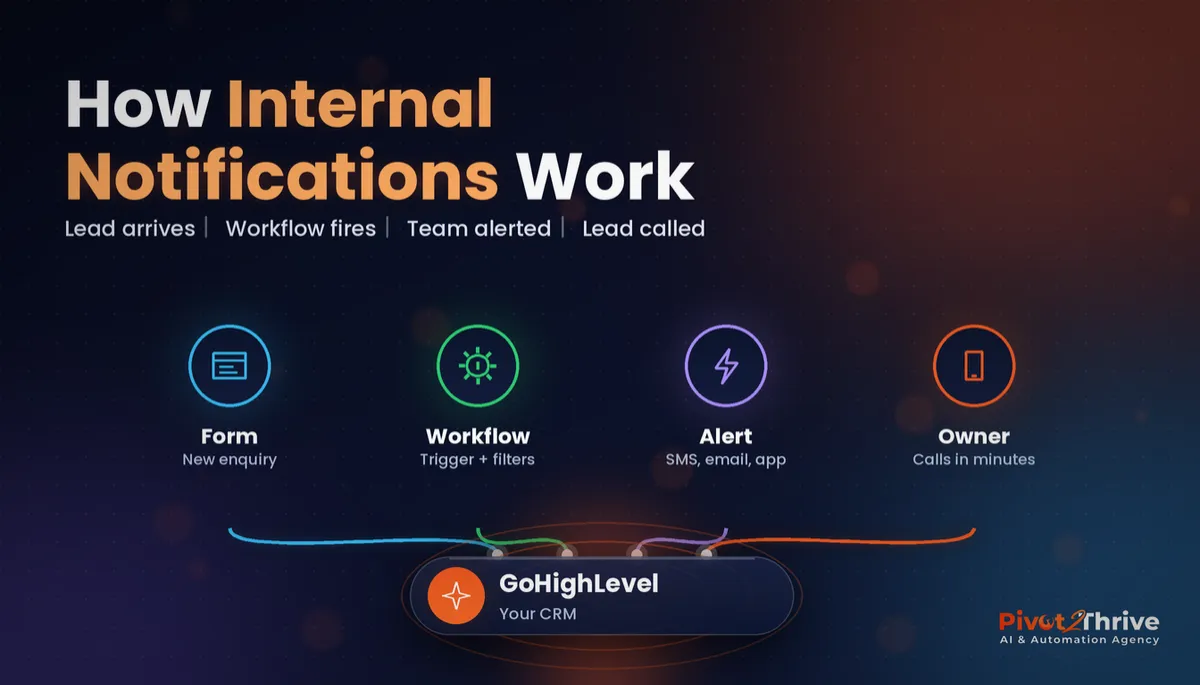
5. Put real follow-up inside each branch. High-value leads get a person fast: an assigned owner, a call task and an internal notification the moment the lead arrives. Lower-value leads get automated nurture, so your team's time goes where the revenue is.
6. Never leave the None branch empty. The None branch catches blank fields, old form versions and typos. Tag those contacts and alert a human, otherwise they quietly fall out of every follow-up.
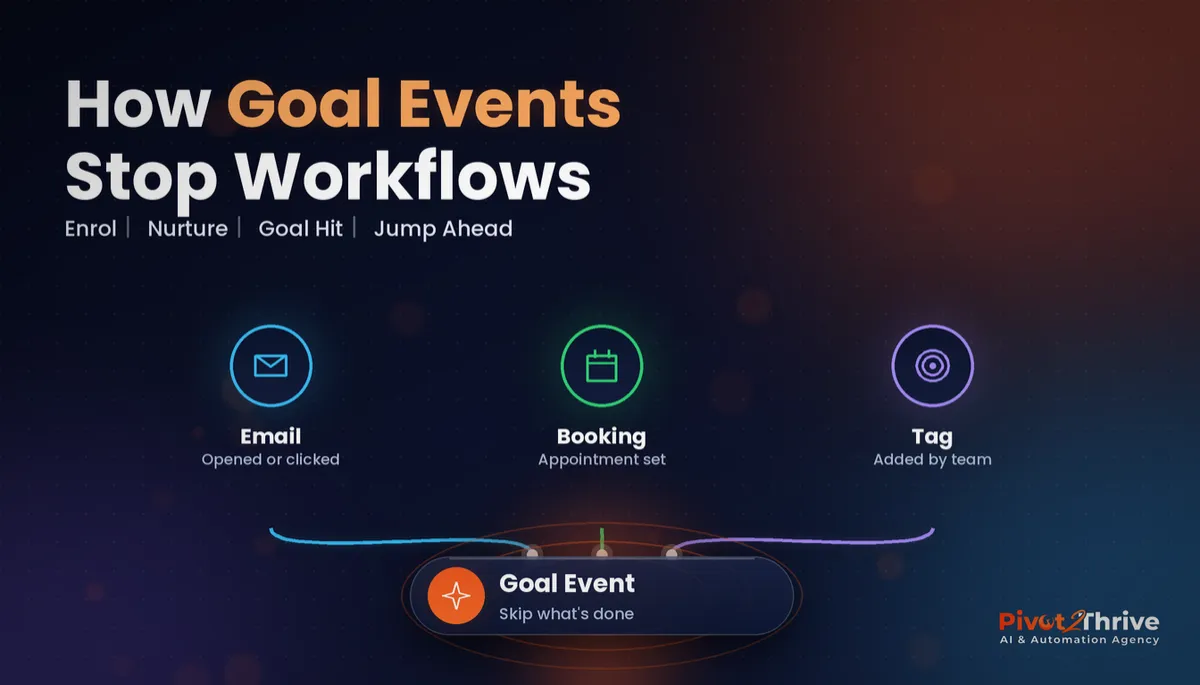
7. Add a goal so booked leads stop getting chased. Set a goal event for "appointment booked" so anyone who books exits the sequence, as explained in our GoHighLevel goal events guide.
8. Test every branch with a test contact. Submit the form once per branch, including once with the routing field blank. Check the workflow's execution log to confirm each contact took the path you expected before you publish.
Once it works, you have one workflow that behaves like four — and one place to update when your offer changes.
A workflow without branches treats a $20,000 project and a tyre-kicker exactly the same. If/Else is how you stop doing that.
Not on HighLevel yet? Start with a free 30-day trial — enough time to build everything in this guide before you pay a cent.
An Australian example: a Brisbane renovation builder
Here is an illustrative scenario. A Brisbane renovation builder gets 60 web enquiries a month, from $3,000 bathroom refreshes to $150,000 extensions, all through one form and one straight-line workflow.
They add a required "Project size" dropdown and a three-branch If/Else. Extensions over $50,000 assign straight to the owner with a 15-minute call task; mid-size jobs get an instant booking link for a site visit; small jobs get a price guide and a nurture sequence.
Day to day, the owner stops scrolling through every notification. Their phone only buzzes for the enquiries that justify dropping a tool.
The outcome they notice is calmer, not just faster: big-job enquiries are called the same morning, and small-job leads still get a useful reply instead of silence.
GoHighLevel If/Else mistakes to avoid
- Routing on free-text fields. "Around 10k maybe" never matches a condition. Use dropdowns with fixed values.
- Overlapping conditions. If two branches can both be true, someone will end up in the wrong one. Write ranges that cannot overlap.
- An empty None branch. Blank or unexpected values silently drop out of follow-up. Tag them and alert a person.
- Checking a field before it exists. A tag added by another workflow may land seconds later. A one-minute wait before the If/Else fixes most "branch never fires" complaints.
- Nesting five levels deep. If you cannot explain the workflow on a whiteboard, split it into two.
Routing is only half the job — the other half is learning from deals that do not close, which is where tracking lost reasons in GoHighLevel comes in. The same branching thinking also powers industry builds like our AI booking setup for escape rooms.
Frequently Asked Questions
What does the If/Else action do in a GoHighLevel workflow?
The If/Else action checks a contact against one or more conditions, such as a tag, a custom field value or an opportunity stage, and sends them down the branch whose conditions they meet. Contacts that match no branch follow the None branch. It lets one workflow handle several kinds of lead instead of building a separate workflow for each.
How many branches can a GoHighLevel If/Else have?
You can add several branches to a single If/Else action, plus the None branch that catches everyone else. In practice, keep it to two to four branches; if you need more, split the logic into a second If/Else further down the workflow so each decision stays readable.
What happens if a contact matches more than one If/Else branch?
Treat the branches as an ordered list: put your most specific condition at the top and the broadest at the bottom, so a contact always lands where you intend. The safest habit is to write conditions that cannot overlap, for example budget under $5,000 and budget $5,000 or more.
Should I use If/Else or separate workflows?
Use If/Else when the leads share the same trigger and only the follow-up differs, such as a single enquiry form for several services. Use separate workflows when the triggers are different events, such as a form fill versus a missed call, because that keeps each workflow short and easy to test.
Why is my If/Else branch not firing?
The most common cause is that the field the condition checks is empty when the contact reaches the step, because the form or tag was applied after the workflow started. Add a short wait before the If/Else, check the exact field values in the contact record, and test with a real test contact rather than assumptions.
Can If/Else branches check opportunity or appointment data?
Yes. Conditions can look at contact details, tags, custom fields and, depending on the trigger, opportunity and appointment information such as pipeline stage or status. Check which fields are available for your trigger when you build the condition, because not every trigger carries every data type.
Still deciding on a platform? Try HighLevel free for 30 days and build your first If/Else branch on a test contact before you commit.
Related Articles
Our services
- PowerPivot Leads Pro — AI lead generation and follow-up
- AI Receptionist Agent — answer every call, 24/7
Keep reading
 GoHighLevel Workflow Goal Events: Stop Chasing Leads Who Have Already Booked
 GoHighLevel Internal Notifications: Alert Your Team the Moment a Hot Lead Arrives
 GoHighLevel Custom Fields: Structure Contact Data So Automations Stay Reliable
 GoHighLevel Tasks: Make Sure Every Follow-Up Actually Happens
Everything else