
GoHighLevel Snippets: Reply Faster With Saved Messages Your Team Actually Uses (2026 Guide)
Last updated: November 2026.
 By Dr Priya Jaganathan, Certified AI Tech Stack Consultant · Pivot 2 Thrive · Updated 6 November 2026 · 5 min read
How to build a library of saved SMS and email replies in HighLevel so your team answers enquiries faster, more consistently and with the right next step every time.
GoHighLevel snippets are the simplest way to cut reply times in your CRM inbox: saved SMS and email messages your team inserts into a conversation in a couple of clicks, personalised with the contact's name and details.
Most Australian businesses on HighLevel never set them up, so every staff member types the same pricing answer, booking link and "thanks for your enquiry" message from scratch — slowly, and differently every time.
Some links below are affiliate links — if you sign up through them, Pivot 2 Thrive may earn a commission at no extra cost to you. It never changes what we recommend.
GoHighLevel snippets are saved text and email replies you insert into any conversation. Build 10–20 of them for your most common questions, organise them in folders, personalise them with custom values and include a booking or trigger link in each. Your team replies in seconds and every reply ends with a next step.
I'm Dr Priya Jaganathan — Go High Level Certified Admin, Certified AI Tech Stack Consultant and keynote speaker. At Pivot 2 Thrive I build these systems for Australian businesses every week, so this guide is written from the build, not the brochure.
GoHighLevel snippets are… your team's best replies, saved
GoHighLevel snippets are reusable text (SMS) and email messages stored in your sub-account. Inside any conversation, a team member opens the snippet picker, chooses one and it drops into the message box ready to edit and send.
According to HighLevel's own help documentation, snippets can be organised into folders and personalised with merge fields such as the contact's first name, custom values and trigger links.
They are the manual half of your messaging. Workflows send messages automatically; snippets make the human replies in your GoHighLevel unified inbox fast and consistent.
Why faster GoHighLevel replies win more bookings
Reply speed decides who gets the job. When researchers for the Harvard Business Review (2011, "The Short Life of Online Sales Leads") tested 2,241 US companies with web enquiries, only 37% responded within an hour — and 23% never responded at all.
The businesses that answer first get the conversation. Snippets turn a three-minute typed reply into a ten-second one, which matters most when the team is juggling the phone, the counter and the inbox at once.
They also protect quality. A saved reply has the right price, the right booking link and the right tone, every time — no typos, no forgotten links, no "I'll get back to you". It is the human side of a five-minute speed-to-lead rule.
How to set up GoHighLevel snippets in 6 steps
This takes about 90 minutes for a typical small business or agency sub-account. Do it once, then add new snippets as new questions come up.
1. Pull your 15 most common questions from the inbox. Scroll back through the last month of conversations and list the questions you answer again and again: prices, availability, location and parking, what happens at the first appointment, payment options and "can I reschedule?".
2. Write each reply once, properly. Keep SMS snippets under about 300 characters, answer the question in the first line and end with one next step. Email snippets can be longer but should still fit on a phone screen.
3. Personalise with merge fields and custom values. Start with the contact's first name, and use custom values for things that change — your booking link, current pricing or the business address — so updating one value updates every snippet. Our guide to custom values and trigger links shows how to set these up.
| Snippet | Type | Ends with |
|---|---|---|
| New enquiry — first reply | SMS | Booking link |
| Pricing question | SMS | "Want me to hold a time for you?" |
| Reschedule request | SMS | Reschedule link |
| Quote follow-up | Trigger link to accept or call | |
| After-hours handoff from the AI | SMS | Named staff member and callback time |
4. Add a trigger link where the next step matters. A trigger link in a snippet tells you who clicked, and can tag the contact or start a workflow. A click on "Book my time" can move the contact to the right pipeline stage without anyone touching it.
5. Organise snippets into folders. Group them by stage — New enquiry, Booking, Follow-up, After service — so the right reply is two clicks away. Name each one by the question it answers, not the date you wrote it.
6. Train the team and review monthly. Show everyone where the snippet picker sits in Conversations and in the GoHighLevel mobile app, and check team permissions include managing conversations. Once a month, update anything with old prices and add a snippet for any question that came up more than three times.
The result is an inbox where the fastest reply is also the best one.
A snippet library is your best salesperson's replies, saved. Every new team member sounds like your best person from their first day.
Not on HighLevel yet? Start with a free 30-day trial — enough time to build everything in this guide before you pay a cent.
An Australian example: a Perth physio clinic's front desk
Here is an illustrative scenario. A three-practitioner physiotherapy clinic in Perth gets 40 to 60 SMS and web chat enquiries a week through HighLevel, handled by one receptionist between phone calls.
They built 14 snippets: first reply with the booking link, initial consult pricing, private health rebate questions, parking, reschedules, and a handoff message for chats passed on by their AI assistant — the moment covered in our guide to AI-to-human handoff.
The receptionist now answers most messages in under a minute, even mid-shift, and every reply ends with a booking link that tags the contact when clicked.
The practice owner notices two things: fewer enquiries going cold overnight, and a new casual receptionist who sounds like the clinic from her first morning.
GoHighLevel snippet mistakes to avoid
- Writing snippets like essays. Long SMS snippets cost more segments and get skimmed. Answer first, then one next step.
- Hard-coding prices and links. When the price changes, you will miss one. Use custom values so a single update flows everywhere.
- No next step. A snippet that answers the question but does not ask for the booking leaves the conversation hanging.
- Sending without reading. A snippet is a starting point. A quick read before sending catches the wrong name or a question it does not quite answer.
- Building 80 of them. Nobody can find the right one in a long list. Fifteen to twenty well-named snippets in folders beats a hundred.
Snippets work best alongside a clean client system — if you run an agency, pair them with a client health score so your check-in messages go to the right accounts first.
Frequently Asked Questions
What are snippets in GoHighLevel?
Snippets are saved SMS and email messages stored in a HighLevel sub-account. Team members insert them into any conversation in a couple of clicks, edit if needed and send, so common questions get fast, consistent replies.
Can GoHighLevel snippets be personalised?
Yes. Snippets support merge fields such as the contact's first name, plus custom values and trigger links. That means one saved reply can greet each contact by name and include your current booking link.
How many snippets should a small business have?
Fifteen to twenty is enough for most small businesses. Cover the questions you answer every week, organise them into folders by stage and add new ones only when a question keeps coming up.
What is the difference between a snippet and a workflow message?
A workflow message sends automatically when a trigger fires, with no person involved. A snippet is a saved message a team member chooses to send by hand inside a conversation, so it suits replies that need human judgement.
Why can't my team see snippets in Conversations?
The most common cause is permissions. Team members need access to view and manage conversations in their user settings before they can use snippets in the inbox.
Can I use trigger links in snippets?
Yes. Adding a trigger link to a snippet lets HighLevel track who clicked it and can tag the contact or start a workflow, so a click on a booking link can move the contact forward automatically.
Still deciding on a platform? Try HighLevel free for 30 days and build your first 15 snippets this week.
Related Articles
Our services
- PowerPivot Leads Pro — AI lead generation and follow-up
- AI Receptionist Agent — answer every call, 24/7
Keep reading
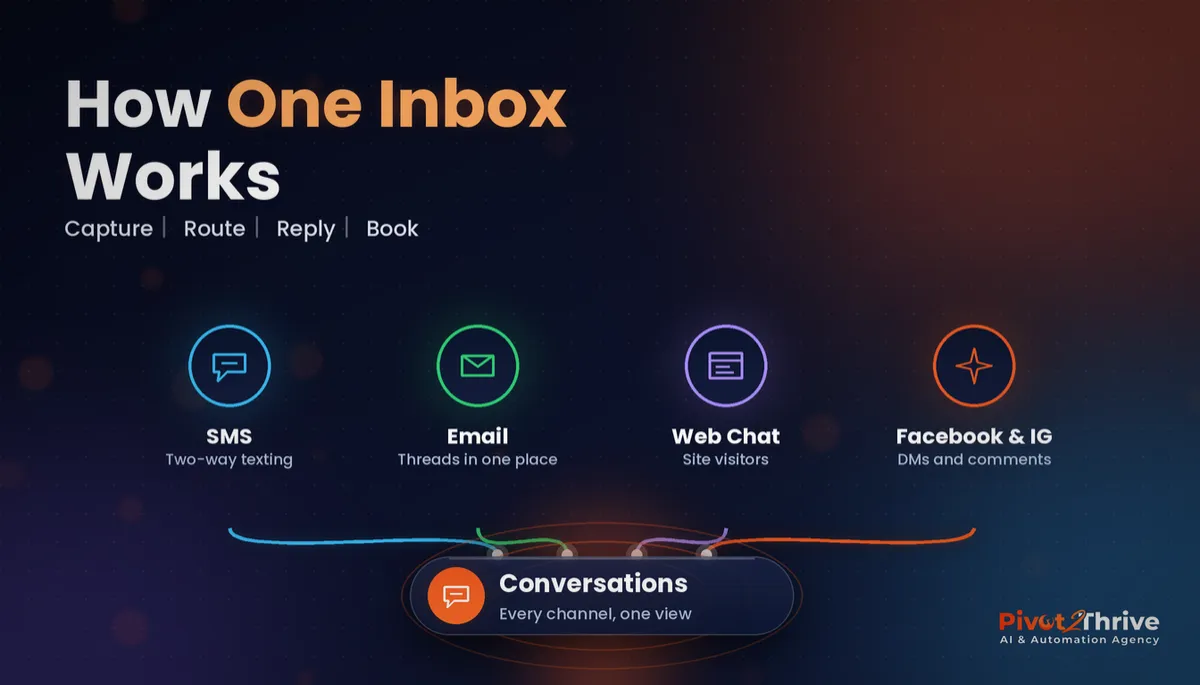 GoHighLevel Conversations: The Unified Inbox Guide
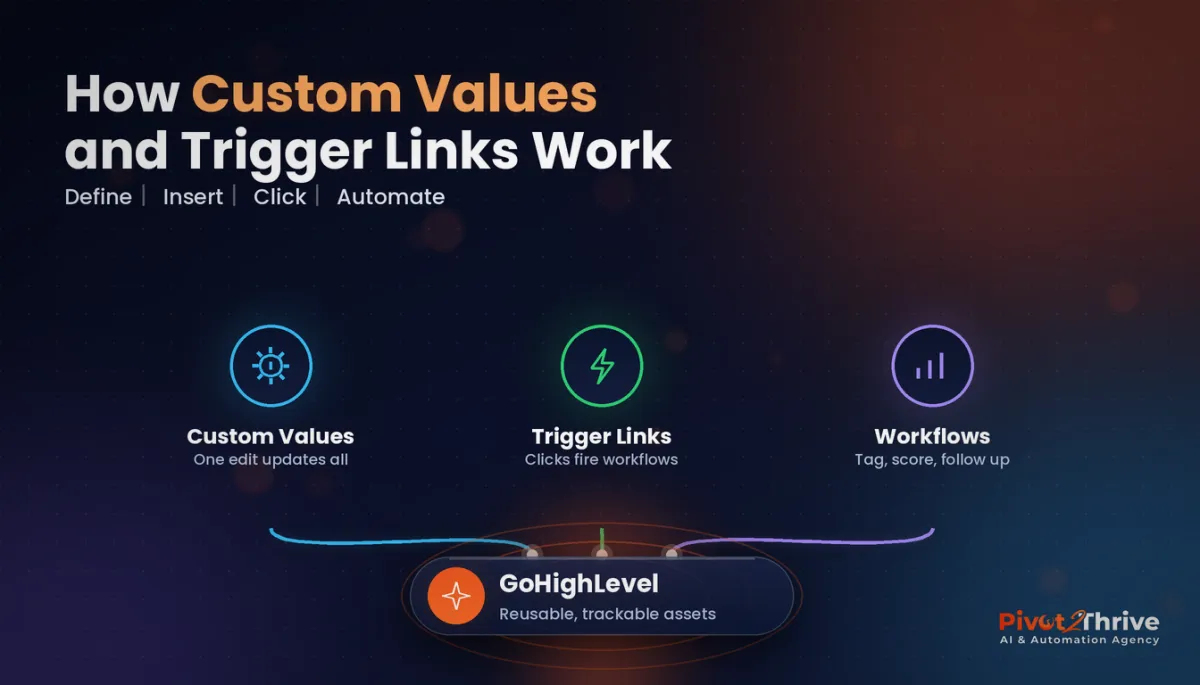 GoHighLevel Custom Values and Trigger Links
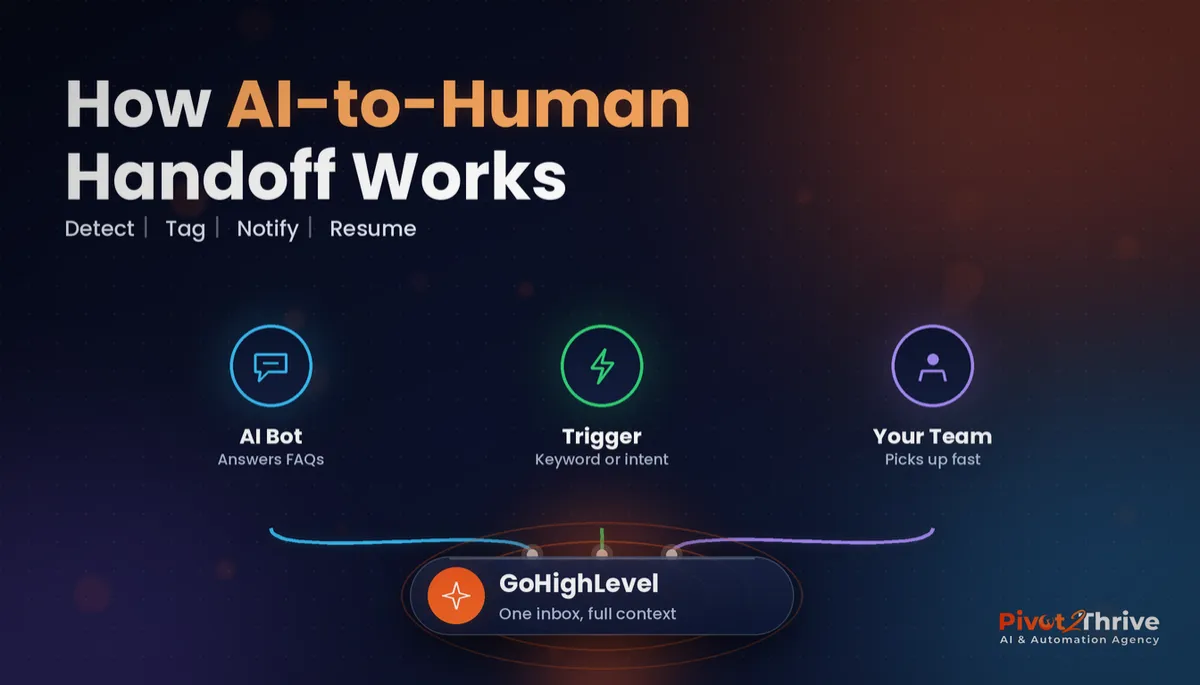 GoHighLevel AI-to-Human Handoff
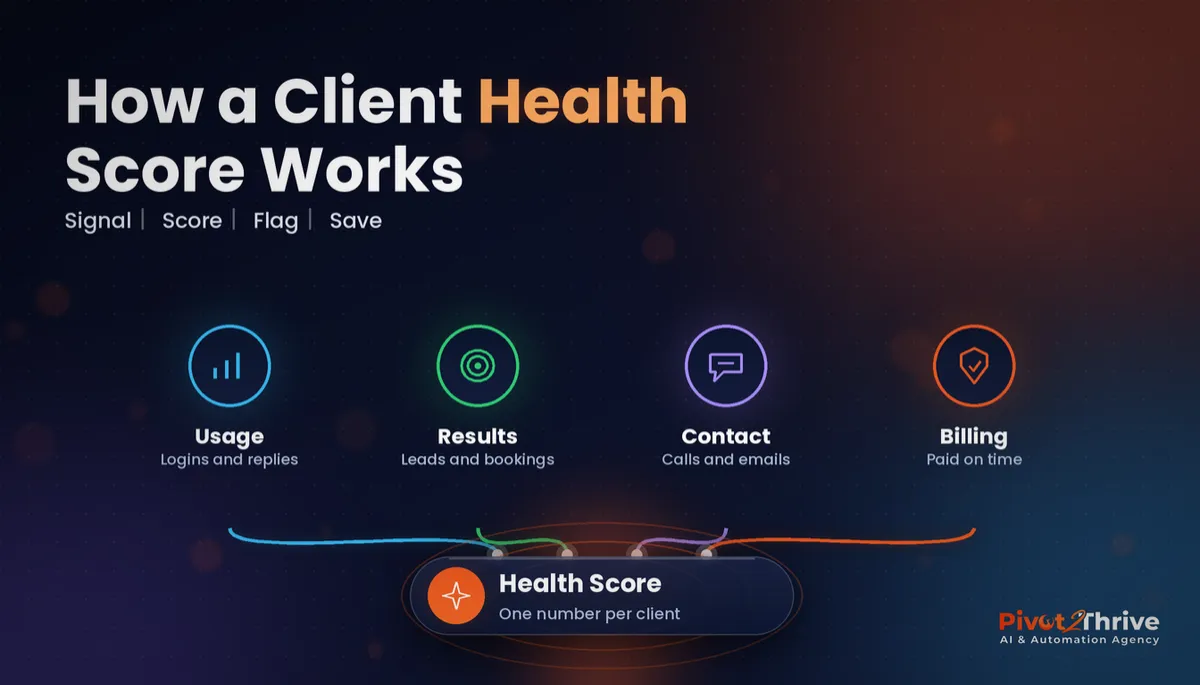 AI Agency Client Health Score: Spot At-Risk Clients Early
Everything else